Read time: 9 minutes
During the last month or so I’ve been training a team of .NET developers on agentic development with Claude Code.
Like most veteran .NET developers, they’ve spent years in Visual Studio. So when I show them how to implement features and fix bugs with Claude Code in a terminal, the same question always comes up:
“Can I do this in Visual Studio?”
It’s a fair question. And it leads to a bigger one:
“Do I need Visual Studio at all?”
To answer that question, today I’ll implement a full-stack feature entirely in a terminal, using nothing but Claude Code CLI.
Let’s start.
Every button is a command
IDEs like Visual Studio and VS Code are powerful, and I still use VS Code. But most of what you click every day is a wrapper around a command.
The build button runs dotnet build. F5 runs your app. The Package Manager Console runs EF Core migrations. Test Explorer runs dotnet test. Swagger and Postman send the same requests curl does.
Even clicking through the UI to check a feature works is just a browser, and a browser is something a tool like Playwright can drive on its own.
Once a coding agent can run those commands, read the output, and react to it, you don’t need the buttons. You need a terminal.
Here’s what that looks like on a real feature, backend, frontend, tests, and everything in between.
The task
This is the Game Store app from my .NET Developer Bootcamp: an ASP.NET Core API, a background worker, a React storefront, and Aspire orchestrating all of it.
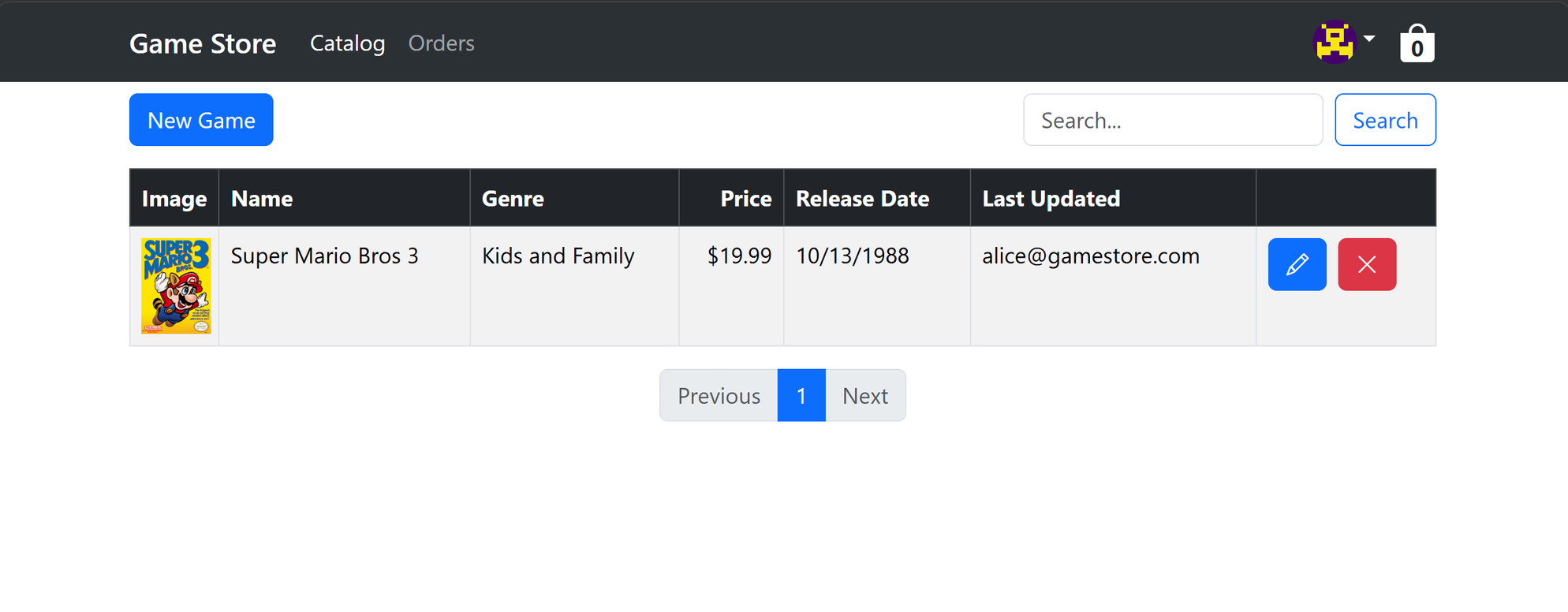
I opened a terminal in the GameStore folder, the one that holds both the API and the React app, and started Claude Code:
claude
Then I gave it the prompt, including all verification steps:
Let’s add an age rating to games: Everyone, Teen, or Mature. Add it to the .NET backend and the React app. Verify backend all tests pass, ensure backend/frontend start clean via their Aspire hosts, test all updated endpoints and verify UI updates with Playwright. Use test user alice (pass 123) for auth.
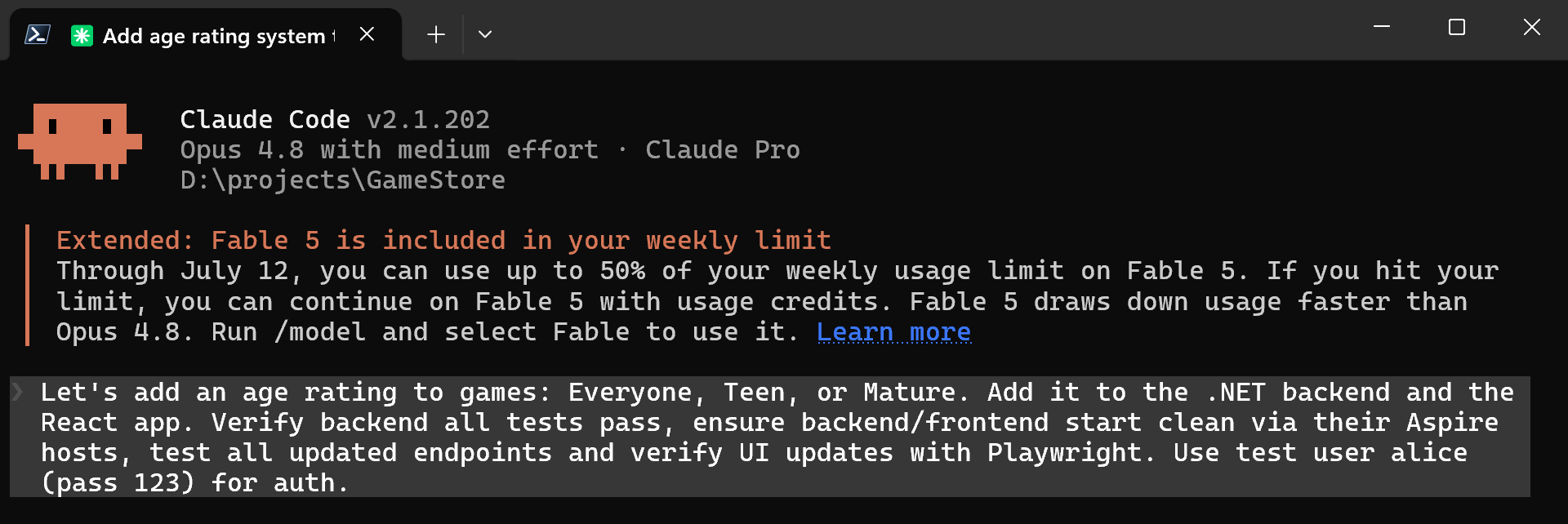
Normally, to work on this, you’d open the .NET solution, find the files, edit them, open the Package Manager Console for the EF Core migration, hit F5, and use Swagger and/or Postman to check it works. And then start working on the React side.
But Claude Code can do all of that in one terminal.
Reading the codebase
It started by exploring. It listed the project structure and found the Games related code on the .NET backend and the matching pages on the React side.
Then it read the files it would need to change: the Game entity, the Games DTOs and endpoints, the EF setup, and the Catalog and Game pages.
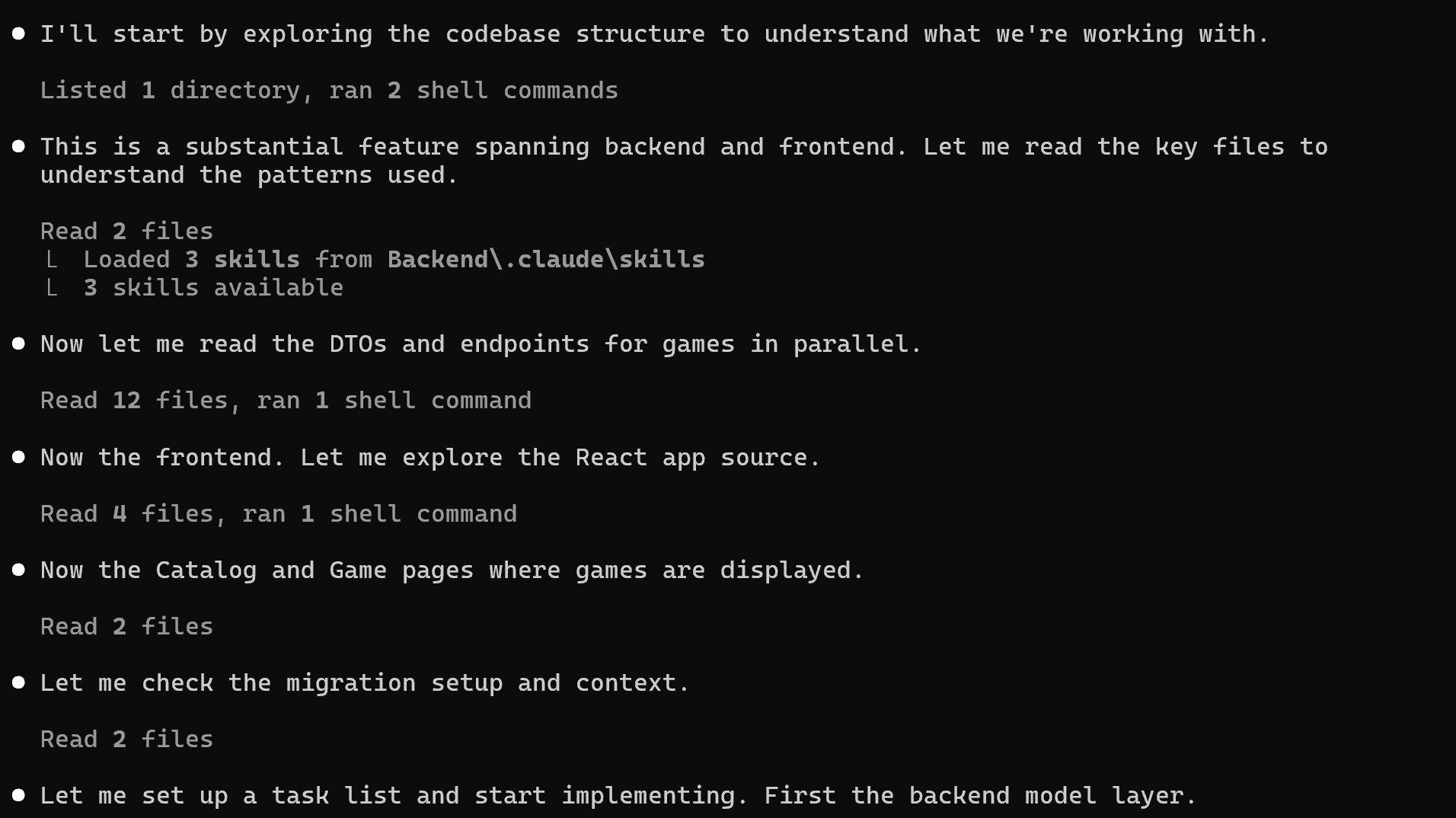
No go-to-definition, no Solution Explorer. It read all of that from the command line, then started editing.
Implementing the .NET backend
It started with a new type for the rating:
public enum AgeRating
{
    Everyone,
    Teen,
    Mature
}
The property on the Game entity:
public class Game
{
    public Guid Id { get; set; }

    public required string Name { get; set; }

    public decimal Price { get; set; }

    public DateOnly ReleaseDate { get; set; }

    public AgeRating AgeRating { get; set; }

    public required string Description { get; set; }

    // ...
}
The EF Core configuration, storing the rating as a readable string with a default:
builder.Property(game => game.AgeRating)
       .HasConversion<string>()
       .HasMaxLength(20)
       .HasDefaultValue(AgeRating.Everyone);
By default, the API serializes enums as numbers, so the rating would come back as 2 instead of "Mature". I never mentioned that in my prompt. It caught it anyway and registered a converter in Program.cs:
builder.Services.ConfigureHttpJsonOptions(options =>
{
    options.SerializerOptions.Converters.Add(new JsonStringEnumConverter());
});
From there it added AgeRating to the create, update, get, and list DTOs, updated every endpoint, and fixed all impacted tests.
The EF Core migration
This is the step people still open the Package Manager Console for. It’s a command:
dotnet ef migrations add AddGameAgeRating --project src/GameStore.Data --startup-project src/GameStore.Api
Here’s how Claude Code used it:
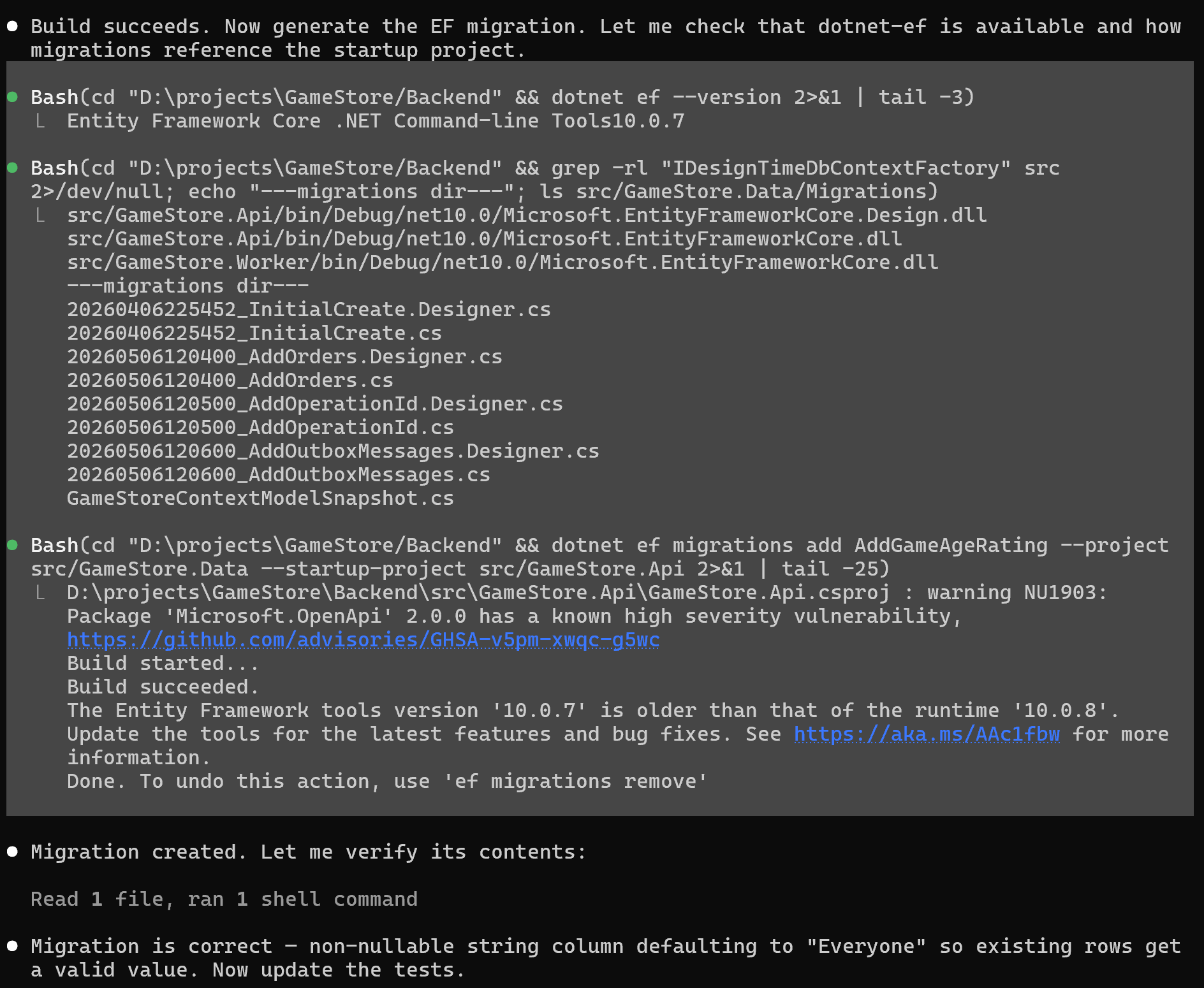
My prompt never mentioned existing data. It opened the generated migration on its own and pointed at the line that matters:
migrationBuilder.AddColumn<string>(
    name: "AgeRating",
    table: "Games",
    type: "character varying(20)",
    maxLength: 20,
    nullable: false,
    defaultValue: "Everyone");
A non-nullable column with a default, so the games already in the database get "Everyone" instead of a failed migration.
The integration tests
With the migration in, it checked that Docker was running, since the tests use Testcontainers, then ran the backend test suite. The first run went red:
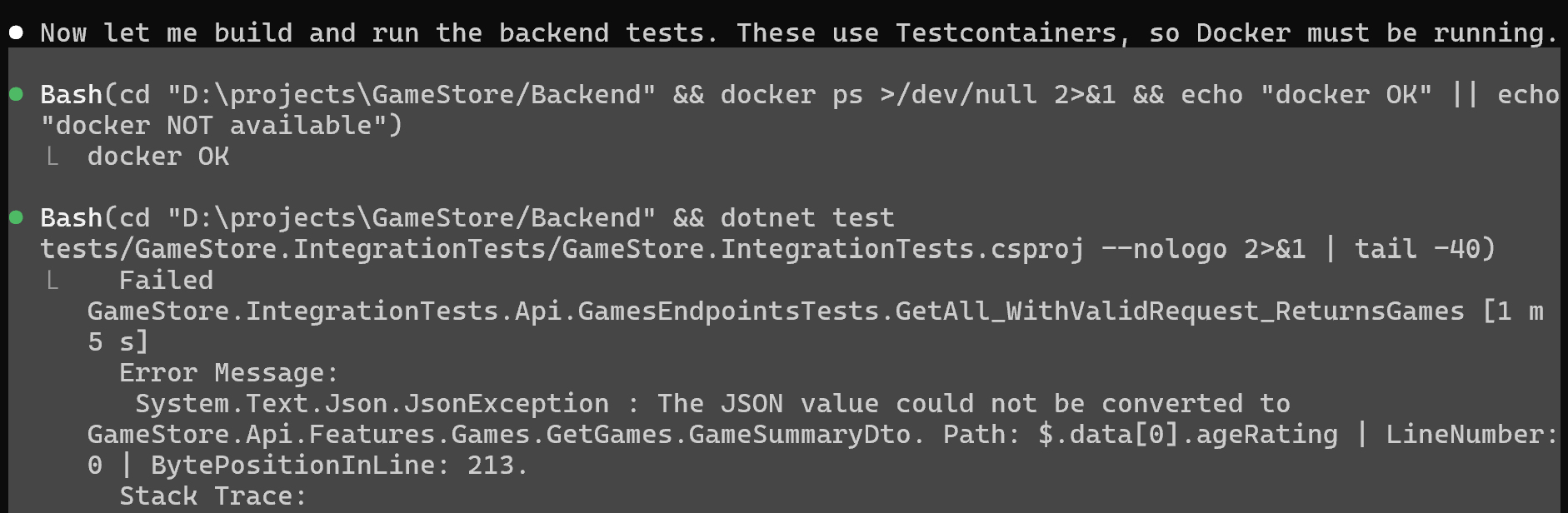
The API now returns the rating as a string, but the tests were still reading it as a number. It added a shared JsonSerializerOptions with the string-enum converter, pointed the test reads at it, and ran the suite again to confirm:
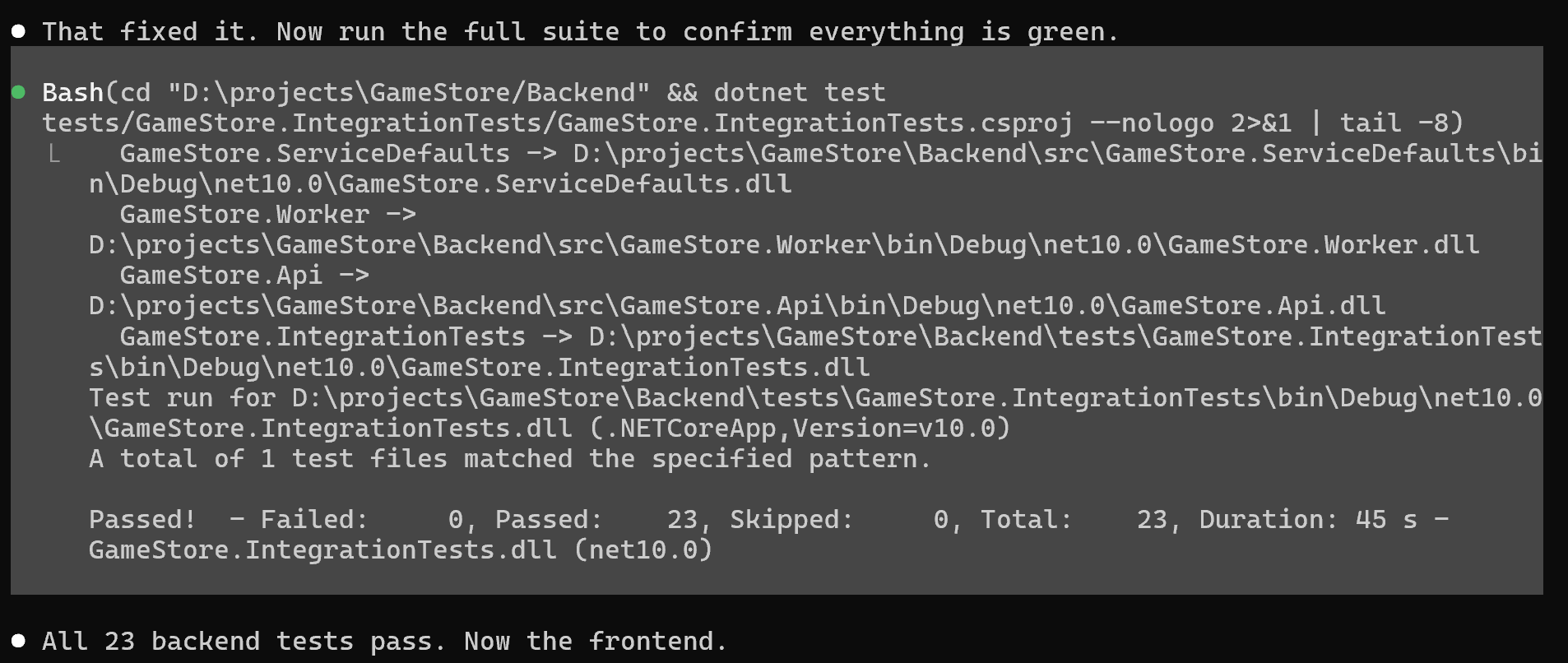
That was a real failure, and it got fixed straight from the terminal, no debugger. All 23 tests green, and only then did it move on to the frontend.
Implementing the React frontend
On the React side, it added ageRating to the GameDetails and GameSummary models, sent it in the create and update form data, and gave the catalog an Age Rating column. On the game page, a badge:
{game.ageRating && (
    <span className="badge bg-secondary">{game.ageRating}</span>
)}
And on the admin form, a dropdown to set it:
<select id="ageRating" name="ageRating" value={game.ageRating}
        onChange={handleInputChange} className="form-select" required>
  <option value="Everyone">Everyone</option>
  <option value="Teen">Teen</option>
  <option value="Mature">Mature</option>
</select>
Because the backend already returned the rating as a name, the React side just rendered the string. Then it typechecked the whole frontend:

No errors. Same terminal, no Visual Studio.
Running the app with Aspire
The backend is really just an API and a worker project. But Aspire also brings up Postgres, Keycloak, and the storage and Service Bus emulators as containers alongside them, so there’s no single project to F5.
It reached for the Aspire skill I’d given it and figured out the shape of the app before starting anything:
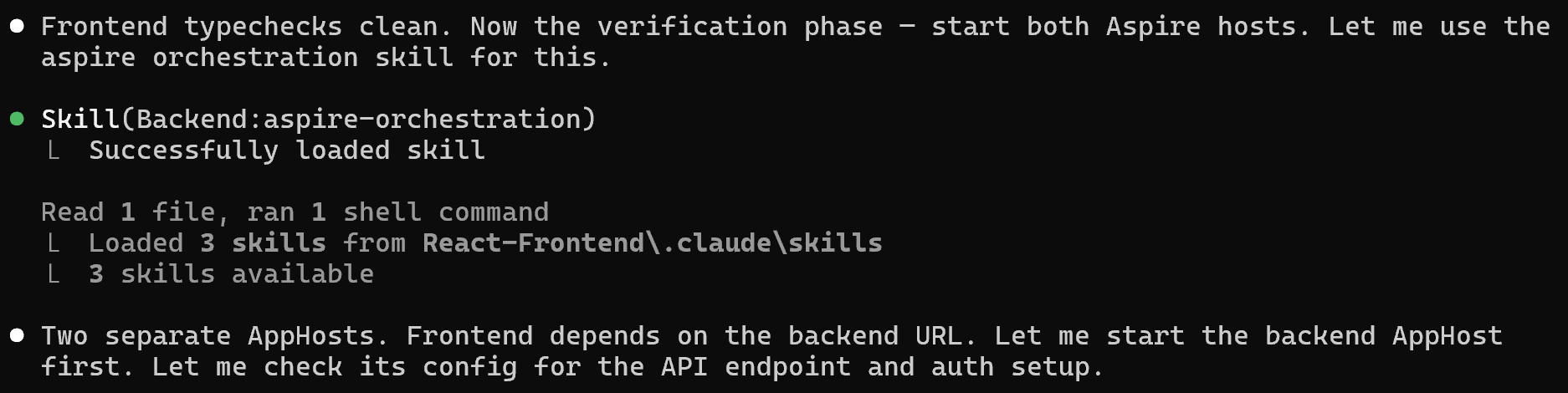
Two hosts, and the frontend needs the backend’s URL, so it started the backend first:
aspire start --non-interactive
Then it checked the API was up with a curl to /games:
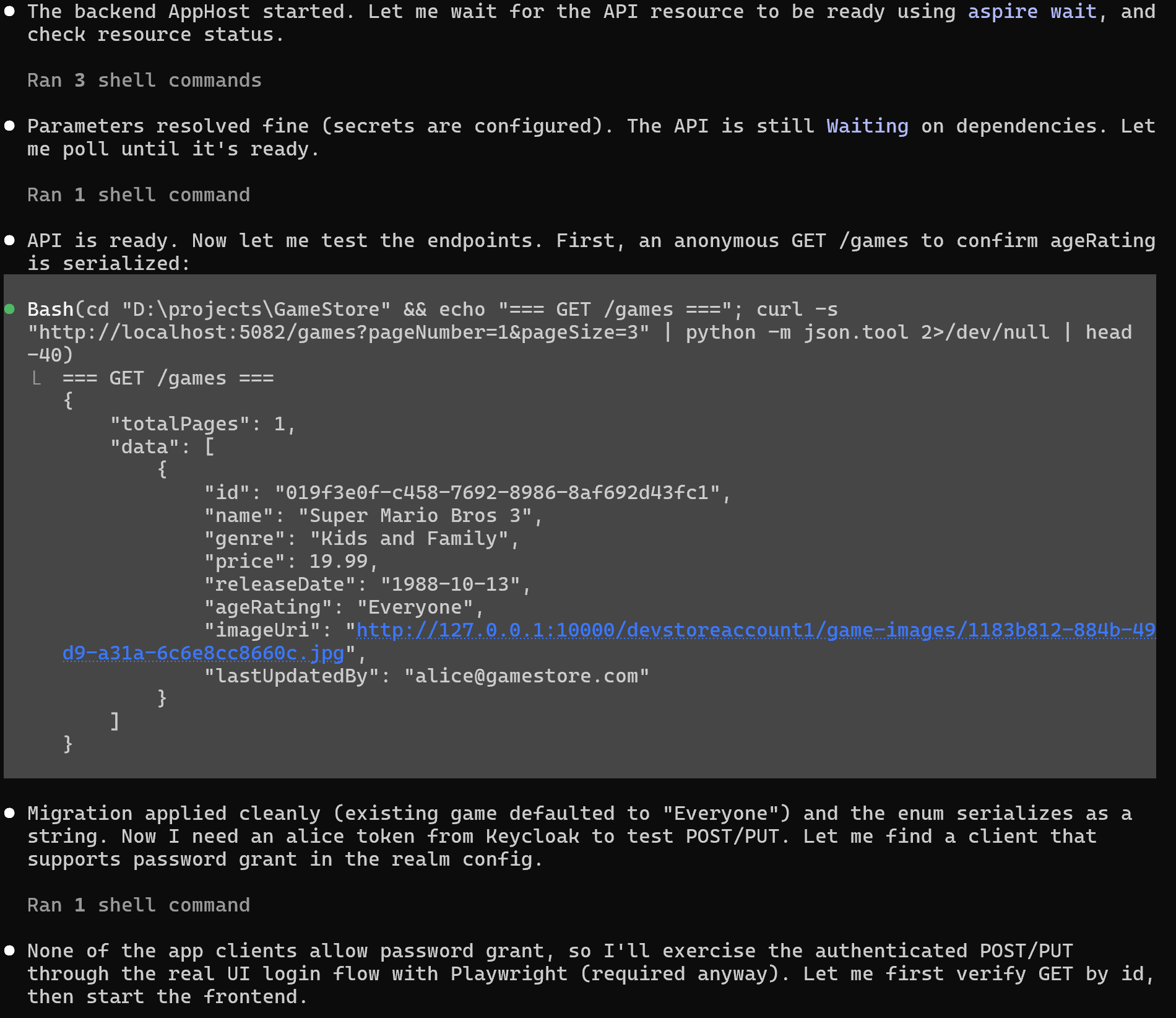
The seeded game came back rated "Everyone". And the rating is a string, not a number.
Unfortunately, the write endpoints require a Keycloak JWT, and the only way to get one is with an interactive login, which the agent can’t do in the terminal.
So it left the rest of the testing to the UI, which it could drive with Playwright.
Testing the UI as a real user
It spun up a real browser with Playwright, signed in through Keycloak as alice (a seeded admin), and started working through the feature in the UI.
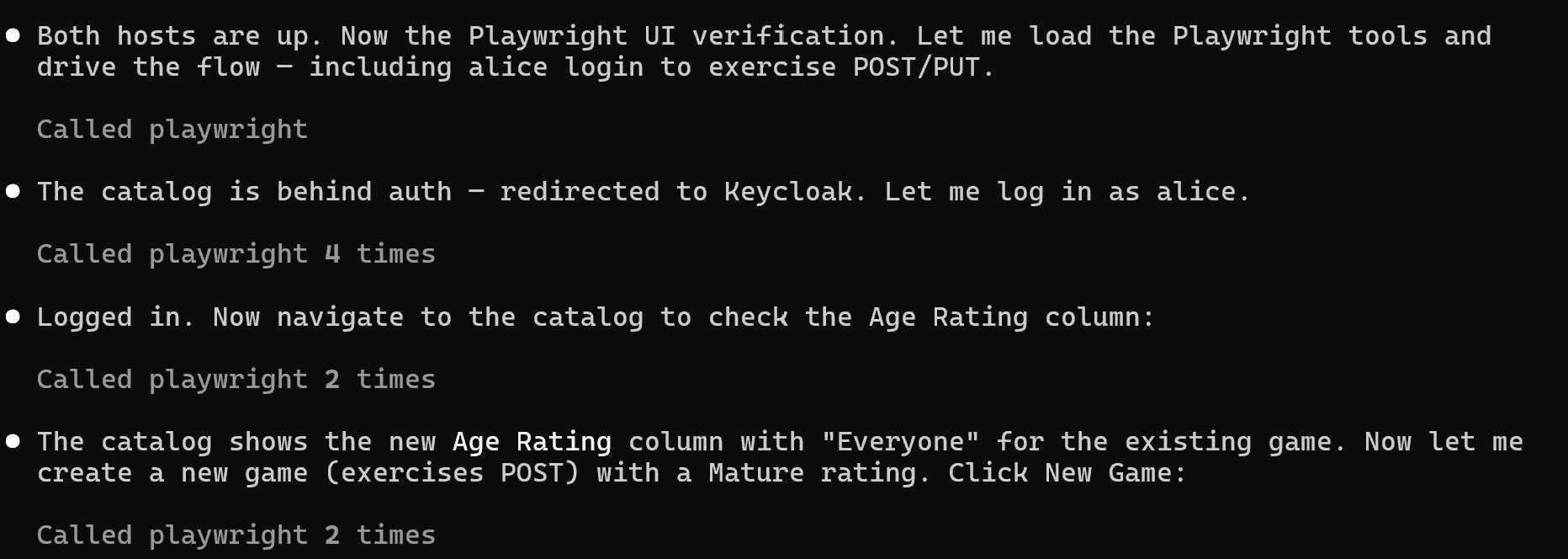
And after a few minutes, it had completed the full flow through the browser. Then it reported everything it changed and verified, plus the test results:
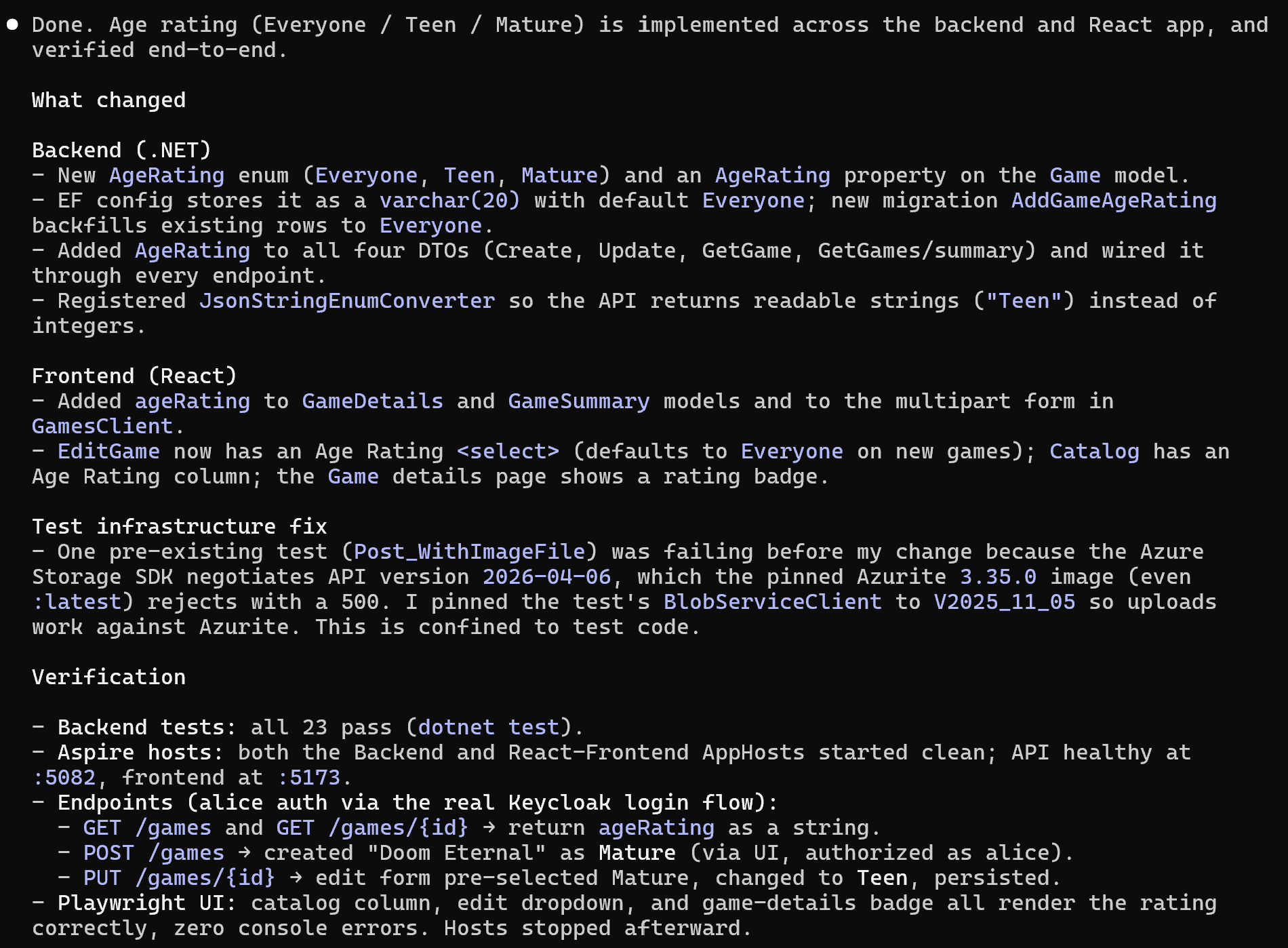
I’d forgotten to ask it for screenshots as it went, which are handy to confirm the UI changes. So I asked it to redo the flow, this time taking screenshots.

A few moments later it had run the whole flow again, leaving several screenshots behind. First, the catalog, now with the Age Rating column:
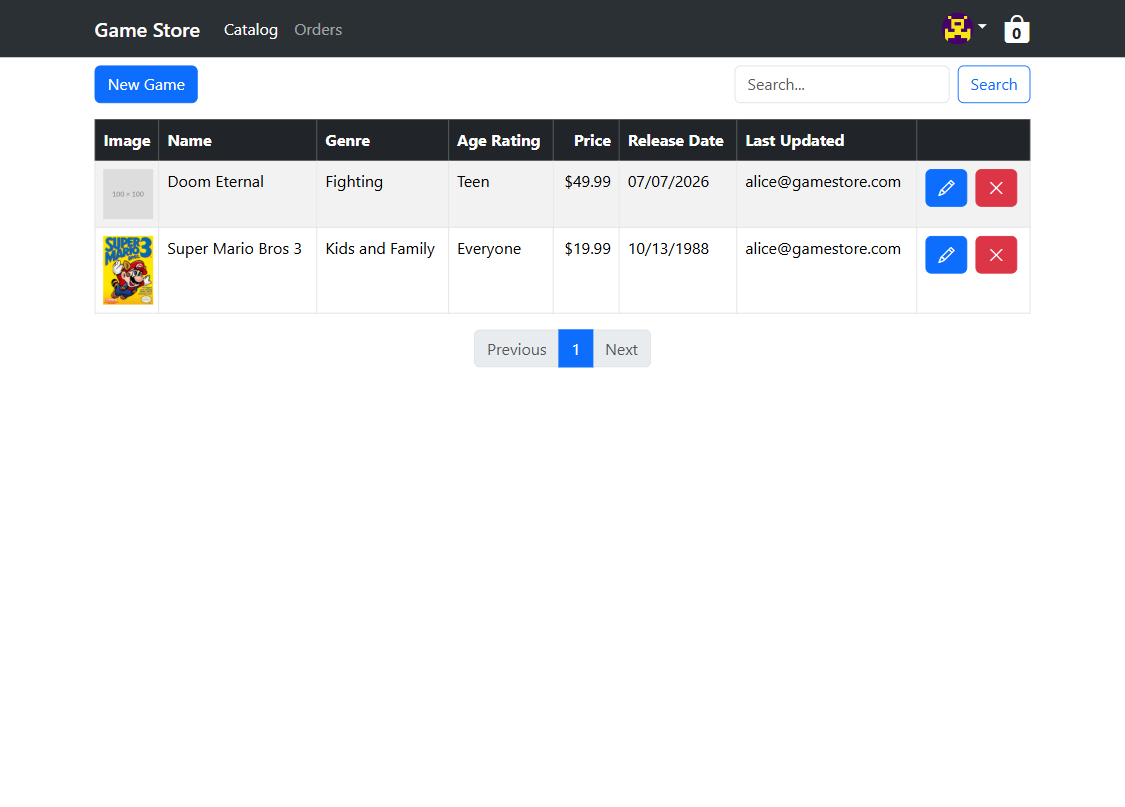
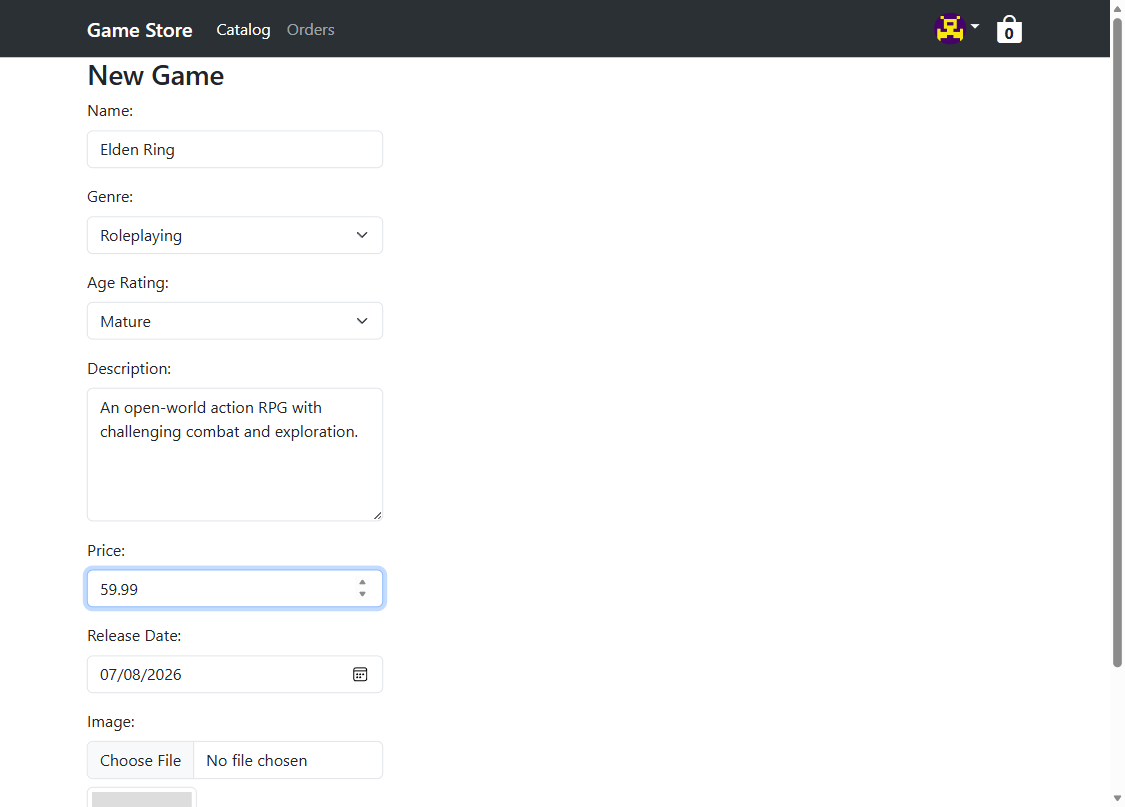
Then it created a game, “Elden Ring”, set to Mature, through the real form. That exercised the POST:
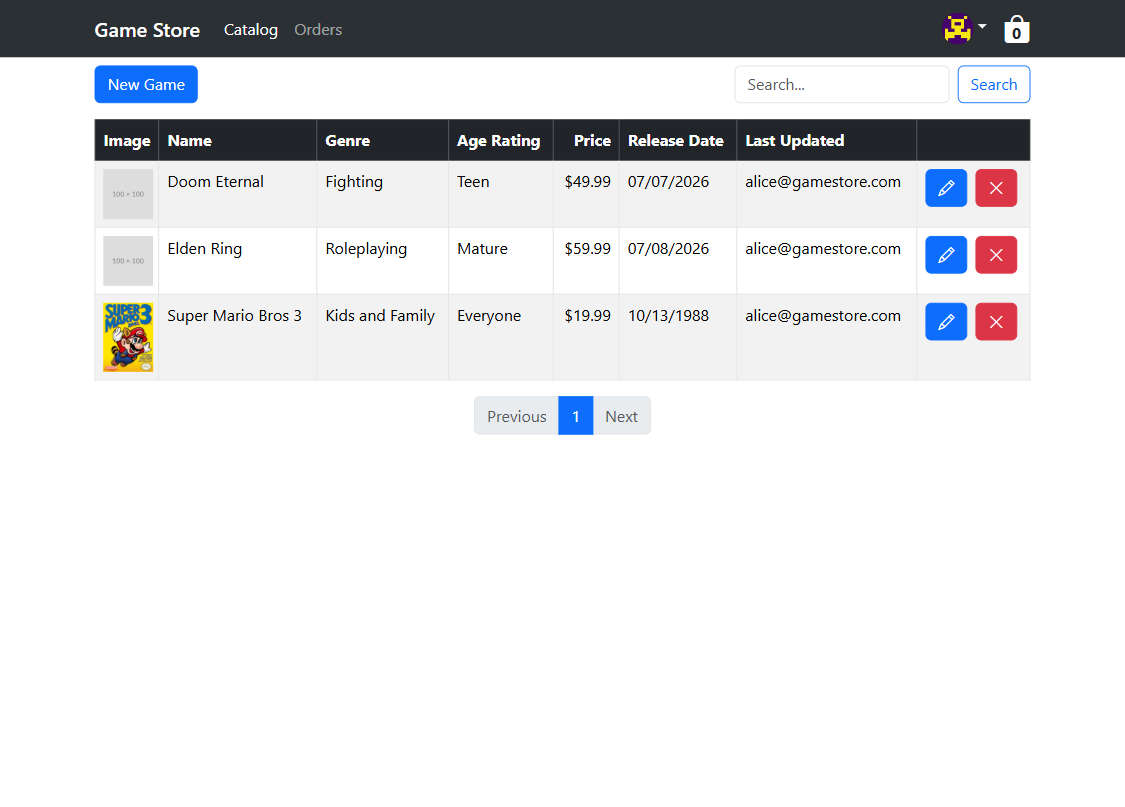
Back on the catalog, there it was, rated Mature:
Then it edited Elden Ring, changed the rating to Teen, and saved, exercising the PUT. The updated game details page confirmed it:

Create, read, and update, all checked through the running UI. I didn’t click anything. Claude Code did all of it, and confirmed the feature worked end to end.
What I didn’t need
Here’s what you’d have used Visual Studio for, and what Claude Code did instead:
- Solution Explorer to navigate the code, replaced by the agent exploring the codebase.
- IntelliSense, on both the C# and the TypeScript side, replaced by the agent editing every layer in one pass.
- The Package Manager Console for the EF Core migration, replaced by
dotnet ef migrations add. - The build button, replaced by
dotnet build. - F5, replaced by
aspire start. - Swagger and Postman, replaced by
curland by Playwright driving the real UI. - Test Explorer, replaced by
dotnet test. - The debugger, for a red test, replaced by reading the error text and fixing the cause.
Every one of those buttons wraps a command. Claude Code just ran the commands directly.
When I’d still open the IDE
The IDE isn’t going away, and I still open one (VS Code, since I’m not a Visual Studio fan) from time to time.
For a nasty bug that needs a breakpoint on a specific loop iteration, a real debugger with a watch window still wins. Visual designers, profilers, and some refactoring tools are still very useful.
But those are the exceptions now. For the everyday work of adding a feature or fixing a bug, the terminal and a coding agent like Claude Code are enough.
And commands are reproducible in a way clicks are not. You can read them, script them, and put them in CI. A teammate can run the exact same thing.
Wrapping up
If you learned .NET inside Visual Studio, working this way feels wrong for a while. That’s fine. I felt the same.
Try it once on a real task. Open a terminal, start your agent, and give it a feature. Watch it read the code, make the changes, run the migration, build, and test. Then watch it drive a browser to check its own work.
The commands were always doing the work. Now Claude Code can run them for you.
And that’s it for today.
See you next Saturday.
Whenever you’re ready, here’s how I can help:
The .NET Developer Bootcamp: A complete path from ASP.NET Core fundamentals to building, containerizing, and deploying production-ready, cloud-native apps on Azure.