Read time: 8 minutes
Most of the work I pick up these days starts as a user story or bug in Azure DevOps.
My routine used to be the same every time. Open the work item, copy the description, paste it into Claude Code, then paste in whatever else I figured it would need.
Then at the other end, once the code was done, I would create a feature branch, write the pull request description myself and link work items.
Both ends of that job are copy and paste and Claude Code can do both of them on its own, as long as you give it the right Azure DevOps context.
Today I’ll show you how to connect Claude Code to Azure DevOps, and then walk through a bug from start to finish, with Claude Code pulling the work item, reading the code, writing the fix, creating the pull request, commenting on review feedback, and closing the bug.
Let’s start.
Connecting Claude Code to Azure DevOps
Microsoft ships an MCP server for Azure DevOps. Here’s how to install it:
claude mcp add --transport stdio azure-devops -s user -e ado_mcp_project=GameStore -- npx -y @azure-devops/mcp dotnetacademyio
dotnetacademyio is my organization name, so use yours. You need Node.js 20 or later, and the first call opens a browser to sign you in with your Microsoft account. No personal access token needed.
-s user installs it for every repo on your machine. Without it the MCP server would be installed for the current folder/repo only.
-e ado_mcp_project=GameStore is very useful since, without it, every single call into Azure DevOps stops and pops up a prompt asking which project you meant. Reading the work item, opening the pull request, fetching the review comments, all of them.
Now start Claude Code in the repo we’ll be working on:
claude
Then run /mcp to confirm Azure DevOps connected:
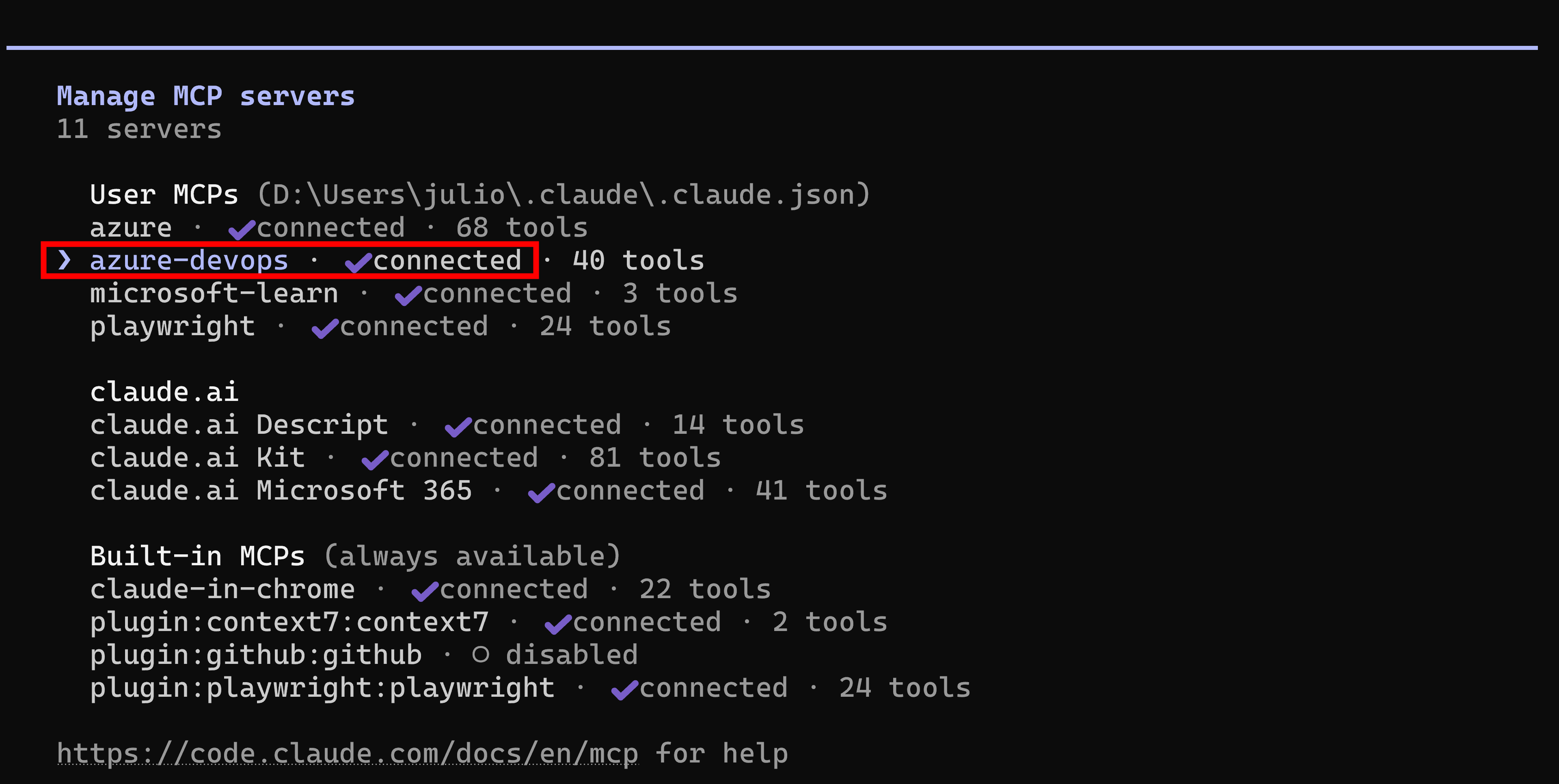
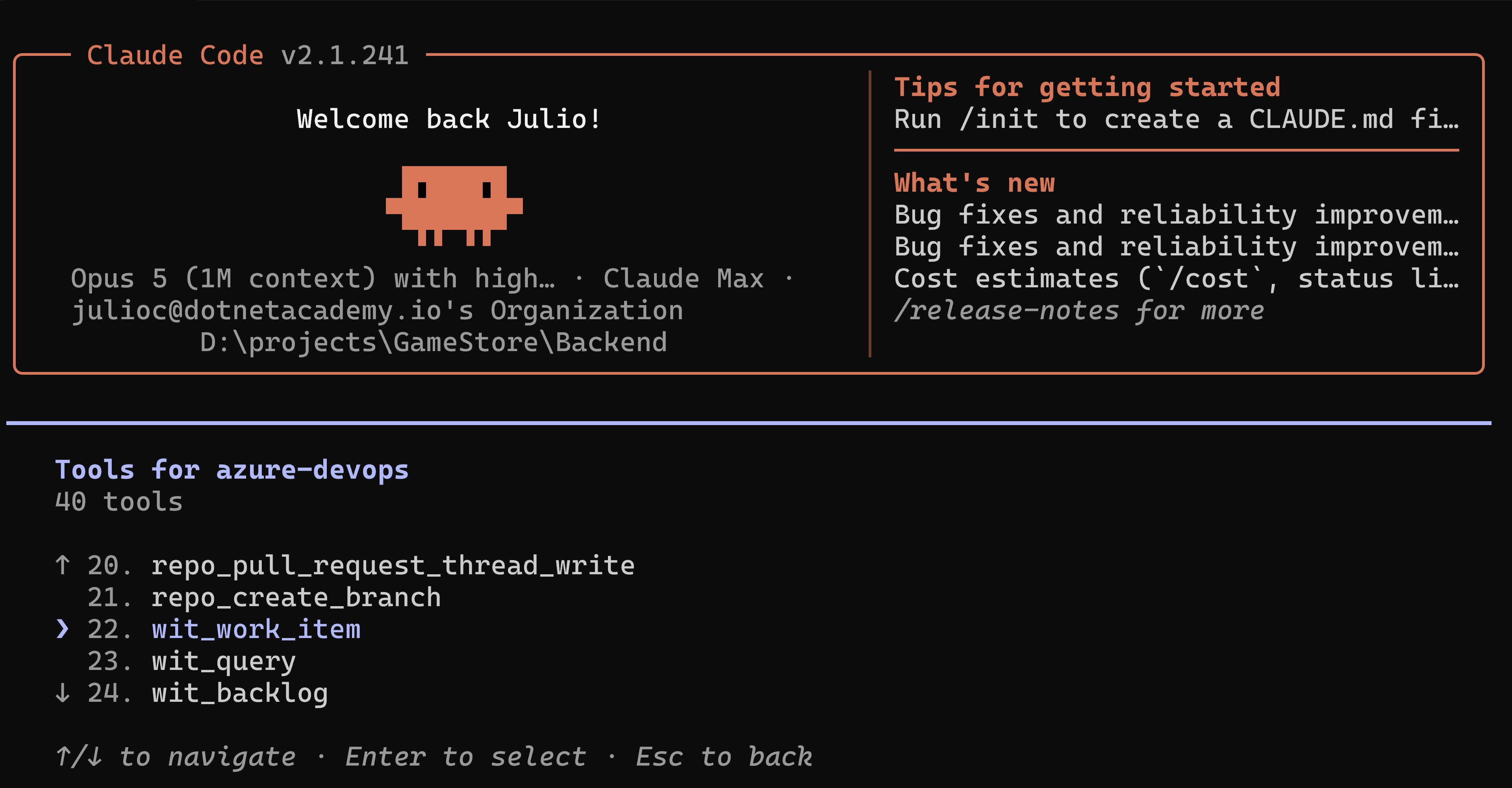
You can also select azure-devops and then browse all the tools it exposes, like work items, pull requests, repositories and many more.
The bug
Here’s the ADO work item. Bug 8 in my GameStore project:
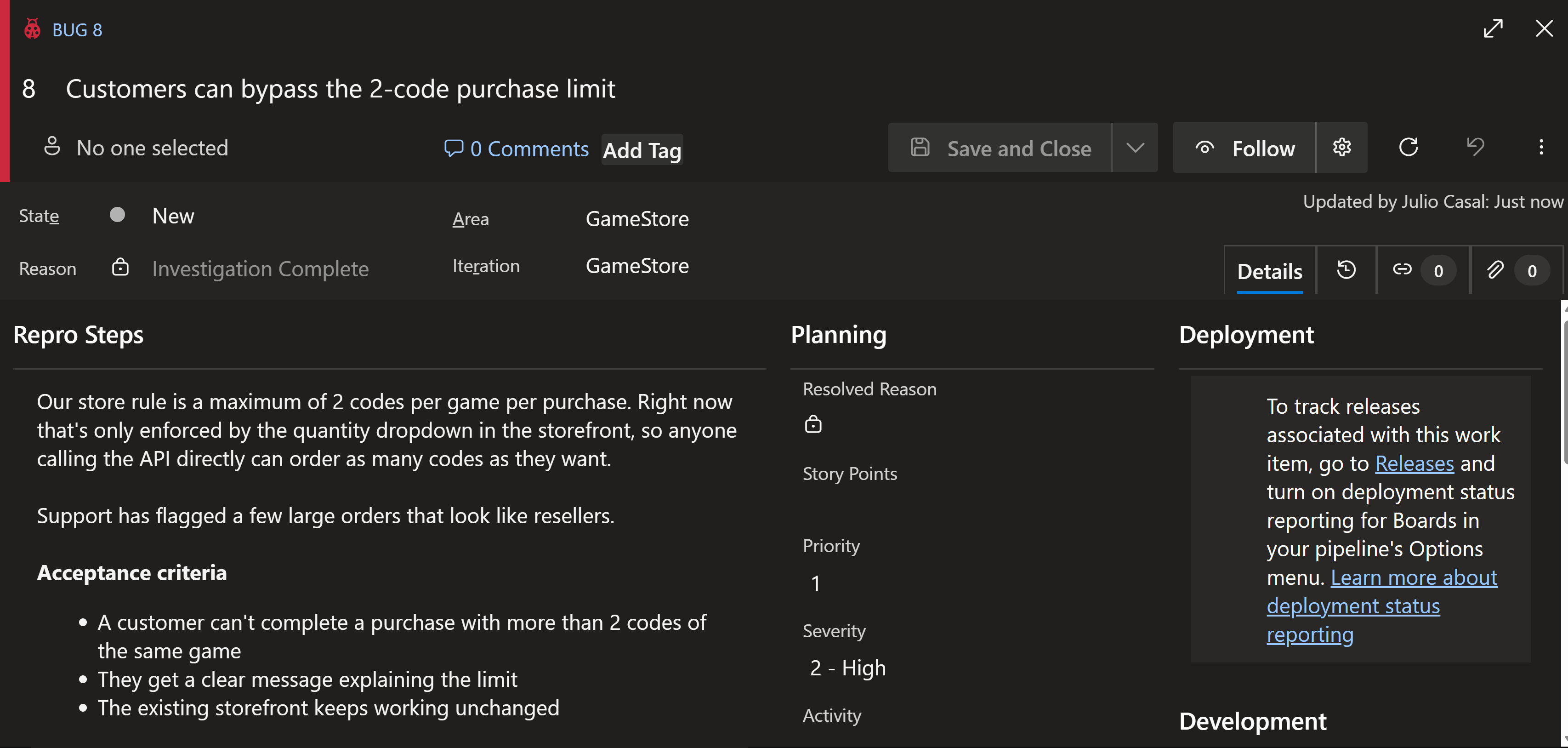
GameStore sells game codes. You buy a code, then you redeem it on your Nintendo, PlayStation or Xbox store. The store rule is a maximum of 2 codes per game in a single purchase, which stops people buying 50 and reselling them.
Three sentences and three acceptance criteria. That’s the whole ticket, and most of the ones I pick up look just like it. What it never says is where the rule should live, or whether the fix belongs in the shopping basket, at checkout, or both.
All of that is in the code, which is exactly why the agent should go and read it instead of me explaining it in a prompt.
Picking up the work
Before any code gets written, two things should be true: the board says the bug is active, and it’s assigned to me.
Right now the board looks like this:
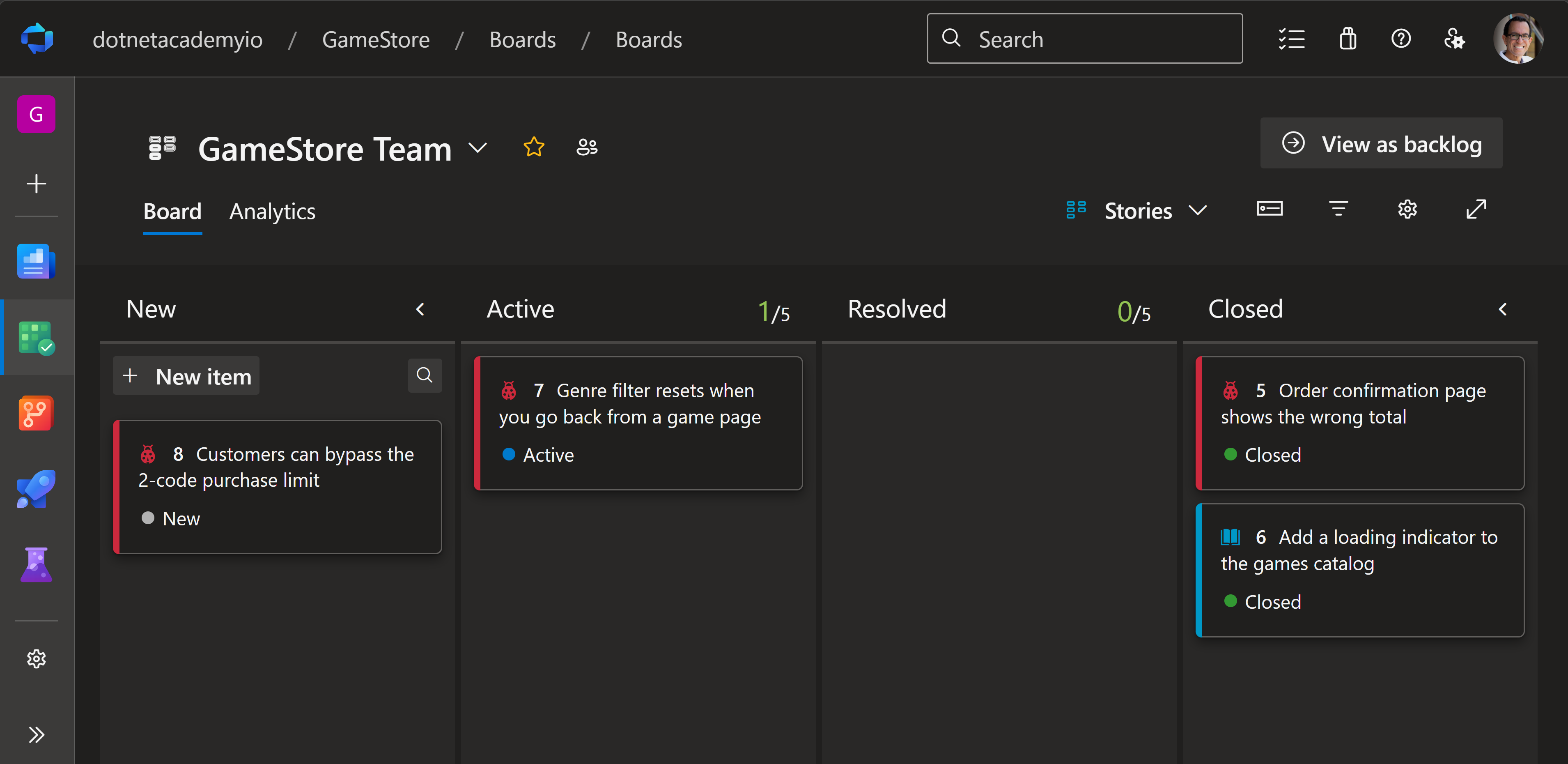
Instead of moving things around myself, I now ask:
Move bug #8 to active and assign it to me
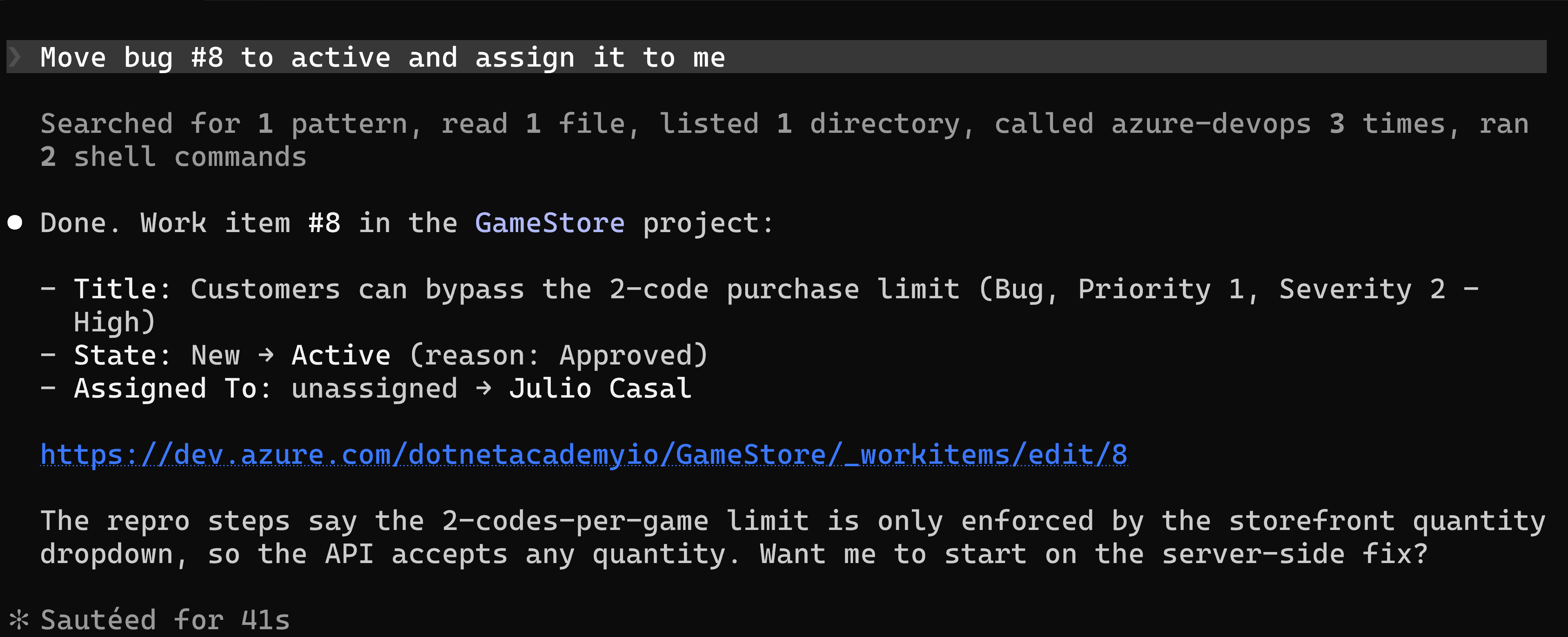
The MCP server writes to Azure DevOps, so bug 8 moved to Active without me opening the board.
Planning straight from the bug work item
Then I switched to plan mode and typed five words:
Let’s work on bug #8

That’s the entire prompt. No file paths, no acceptance criteria pasted in, no explanation of how the checkout flow works.
It pulled the work item over MCP, then went looking:
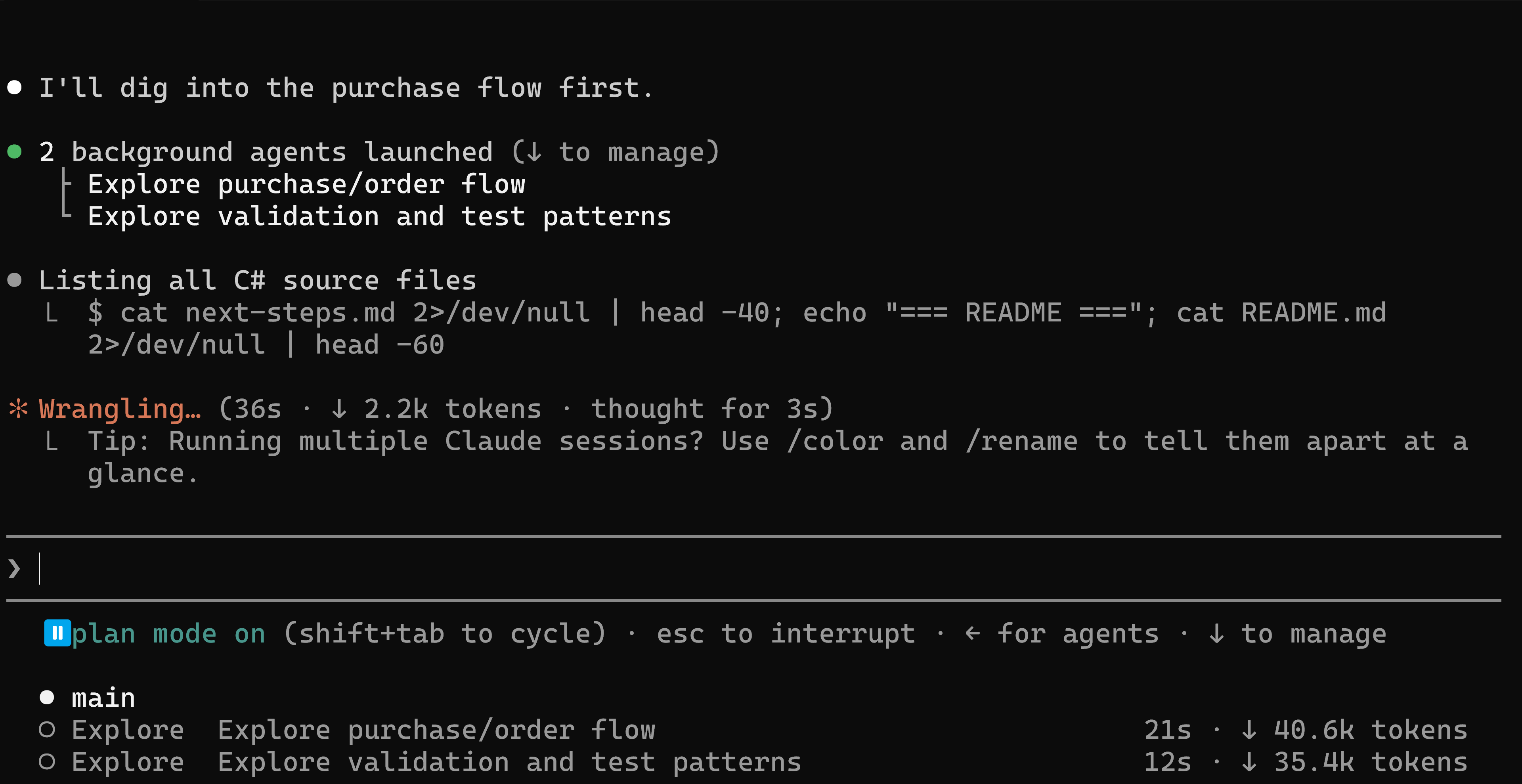
Two background explorers, one on the purchase flow and one on the validation and test conventions. Between them they read 40.6k and 35.4k tokens of my codebase.
That’s 76,000 tokens of context, chosen and read by the agent, none of it pasted by me. Before this, that was my job, and I was doing the best I could, because I was guessing which files mattered from memory.
Claude goes beyond the obvious fix
Two minutes in, before it had written any plan, Claude stopped to tell me the fix I was expecting was wrong:
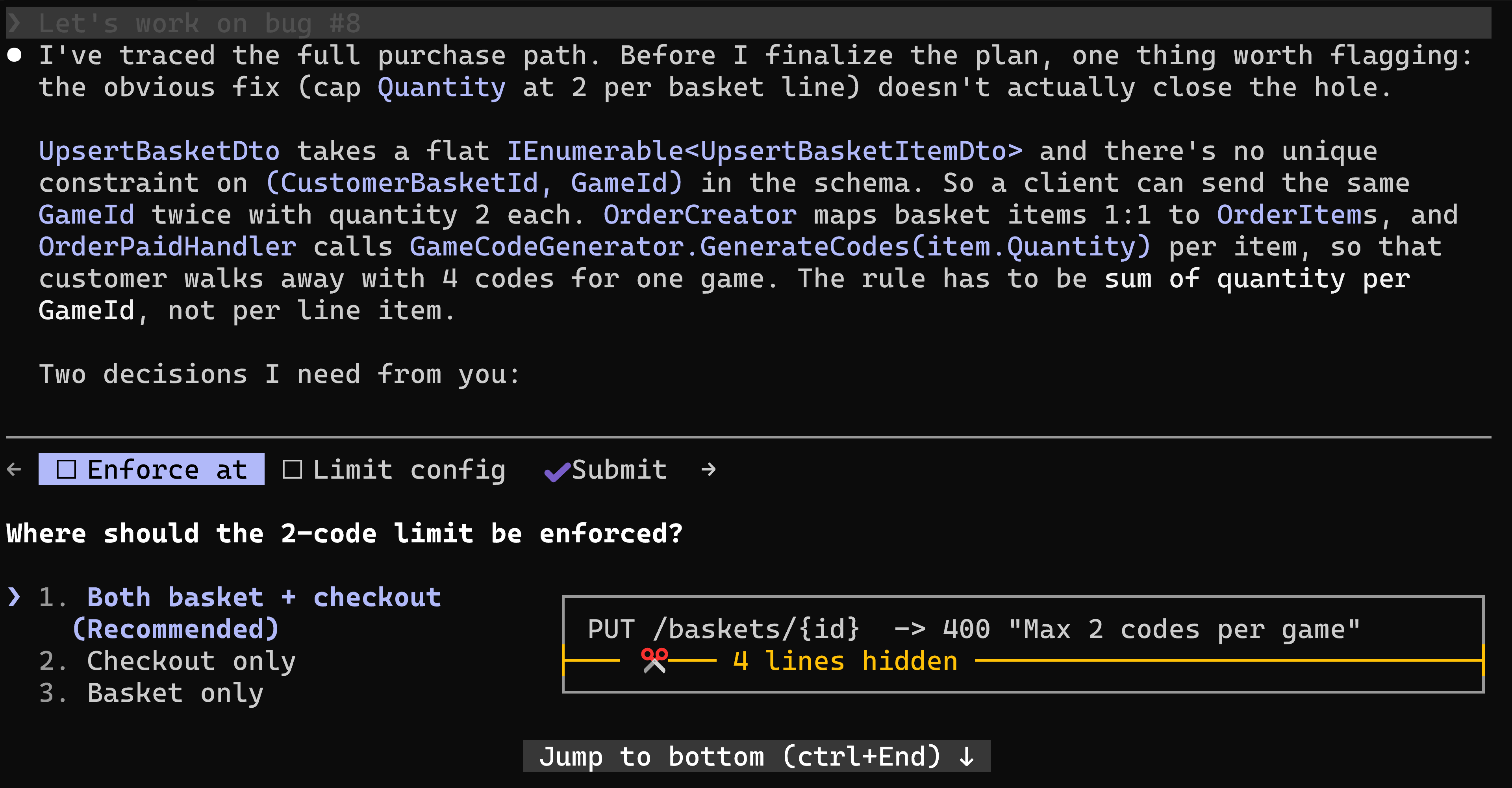
The obvious fix is to cap Quantity at 2 on the basket item. But nothing stops you putting the same game twice in the basket, quantity 2 on each, to end up with 4 codes.
So Claude suggested summing the quantity per game across the whole basket, instead of checking each line on its own.
It’s the kind of insight that comes from reading the code, not just the work item. The code shows how the basket is structured, and that the obvious fix would leave a hole.
Letting it build
This is the part I’ll keep short, because I’ve written about it twice already: how I work through a task in the terminal, and how to make Claude verify its own work as it goes.
It asked me two questions before writing anything. Where to enforce the limit (I said both the basket and checkout), and how to define it in code (a constant, since a store rule doesn’t vary by environment).
Six minutes after I approved the plan: 5 source files changed, 7 new tests, 30 of 30 passing.
Then it did something I hadn’t asked for. It broke the fix on purpose, to see which tests went red:
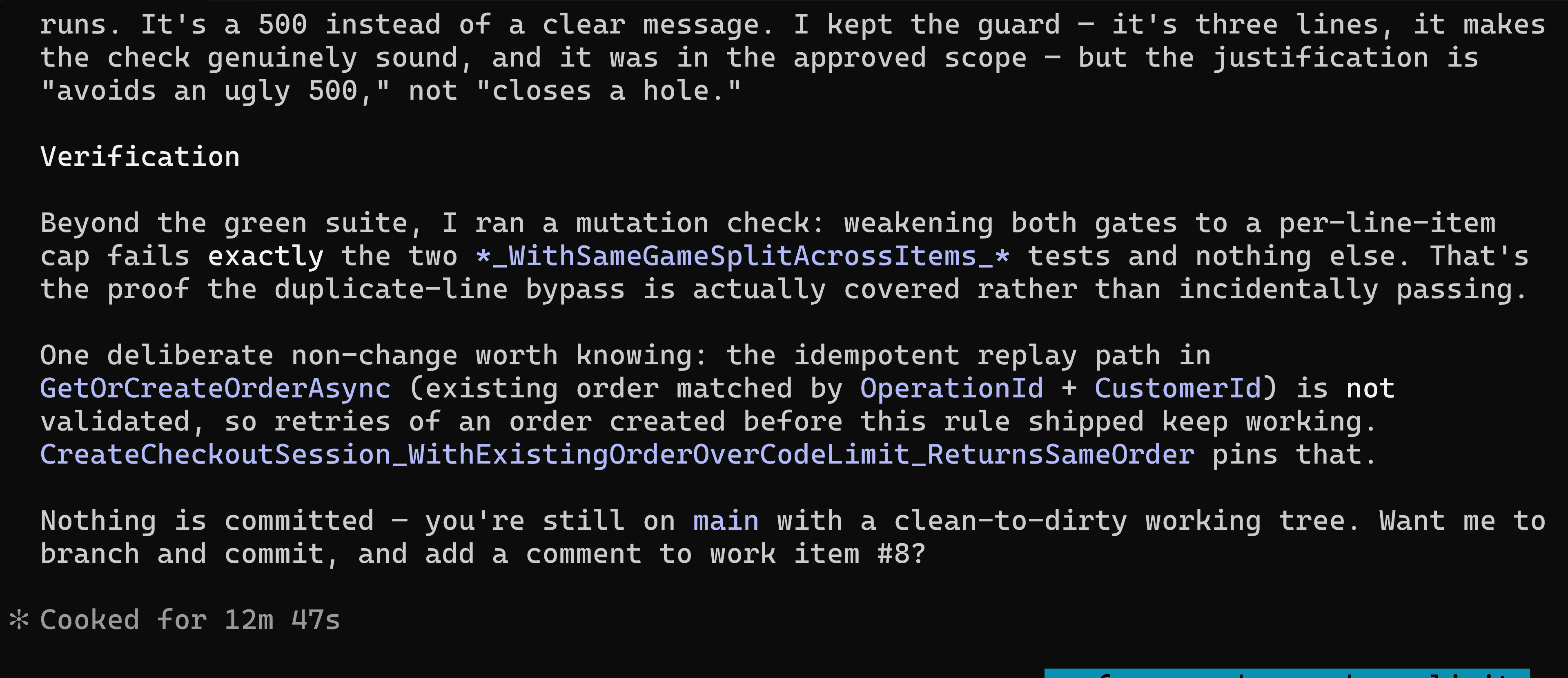
Going back to the per-line cap broke exactly the two tests that cover the same game on two lines, and nothing else. That’s how you find out your suite was testing the bypass, and not just happening to be green.
It reminded me I should be working on a proper feature branch as opposed to directly on main. So I asked it to do the right thing:
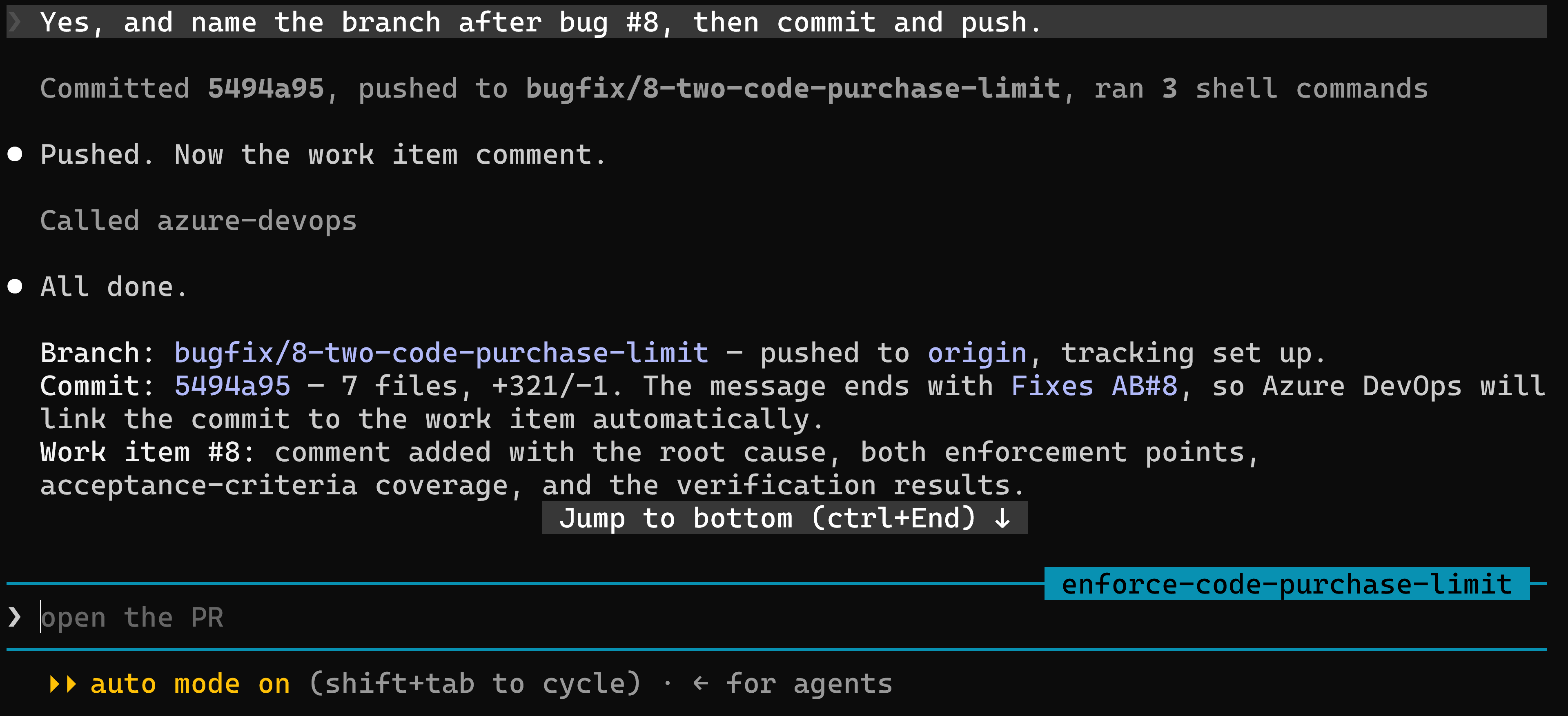
Now, let’s open the pull request.
The pull request
Opening the pull request and figuring out what to put in the description is another of those time consuming tasks that I used to do myself.
But with the ADO MCP server, I don’t even have to open the browser. I can ask Claude to do it for me:
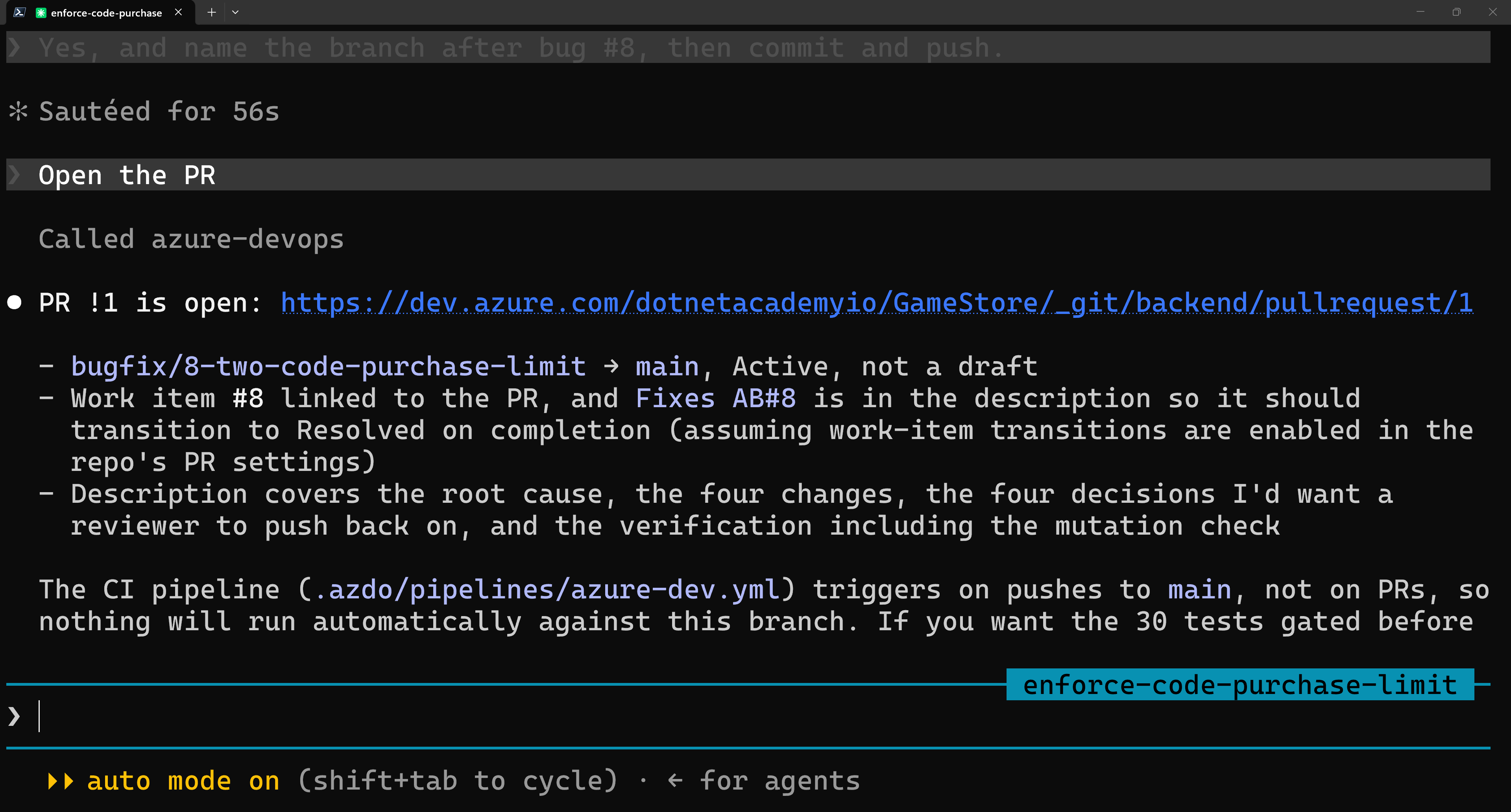
The PR page includes everything a reviewer needs to know: the description, the linked work item, and the associated bug on the right side of the screen.
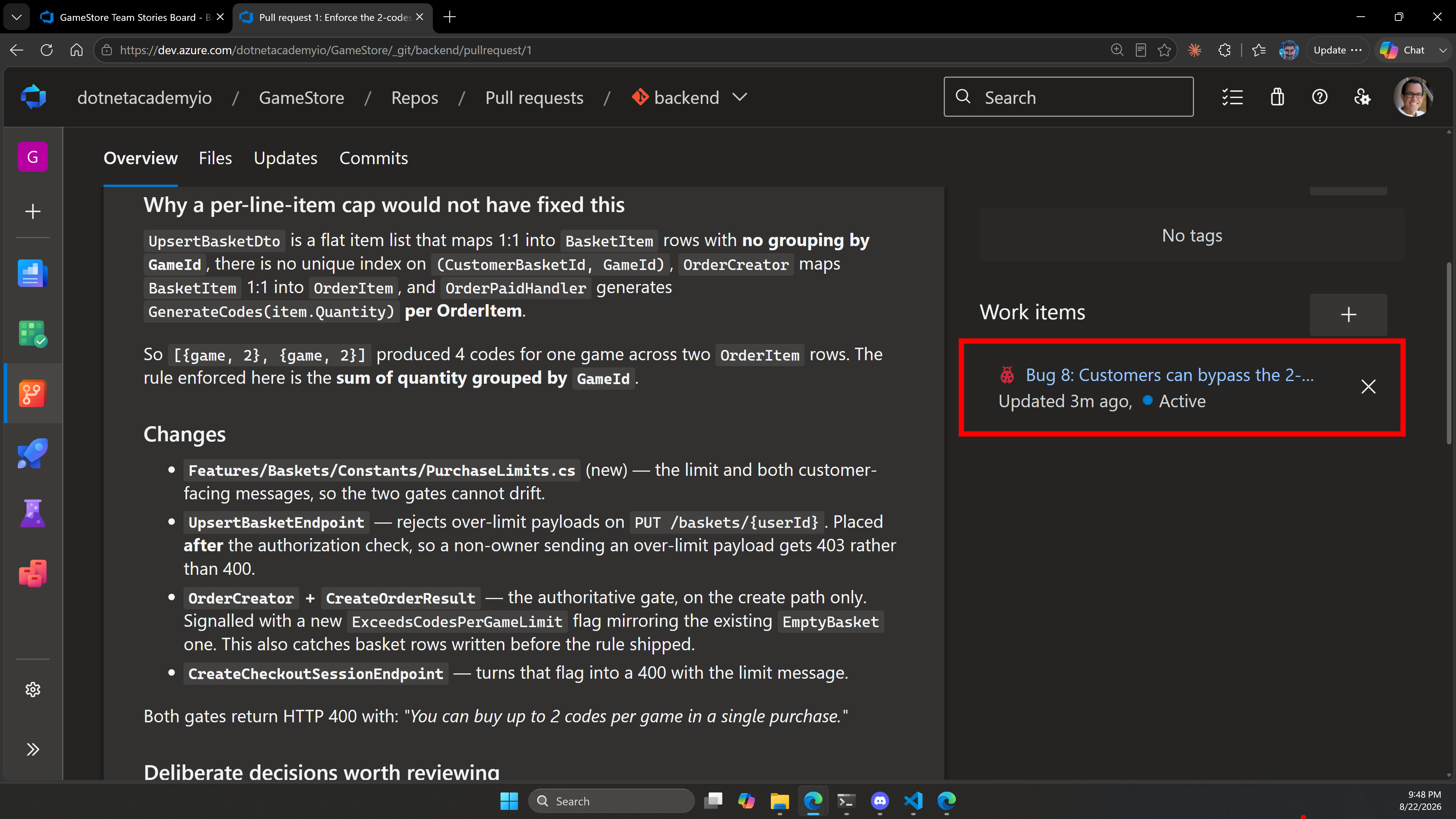
The PR description is the part that I find incredibly useful for reviewers. It explains the PR in great detail, including the reasoning behind the changes and the potential problems of alternative solutions.
Dealing with the review comments
This is the other part that used to take a lot of time for each PR. An agent opening a pull request is easy, but reviewers will ask questions like “why did you do it this way?” and now you have to provide answers.
I used Clio’s account (my OpenClaw AI assistant) to leave a few comments on my PR:
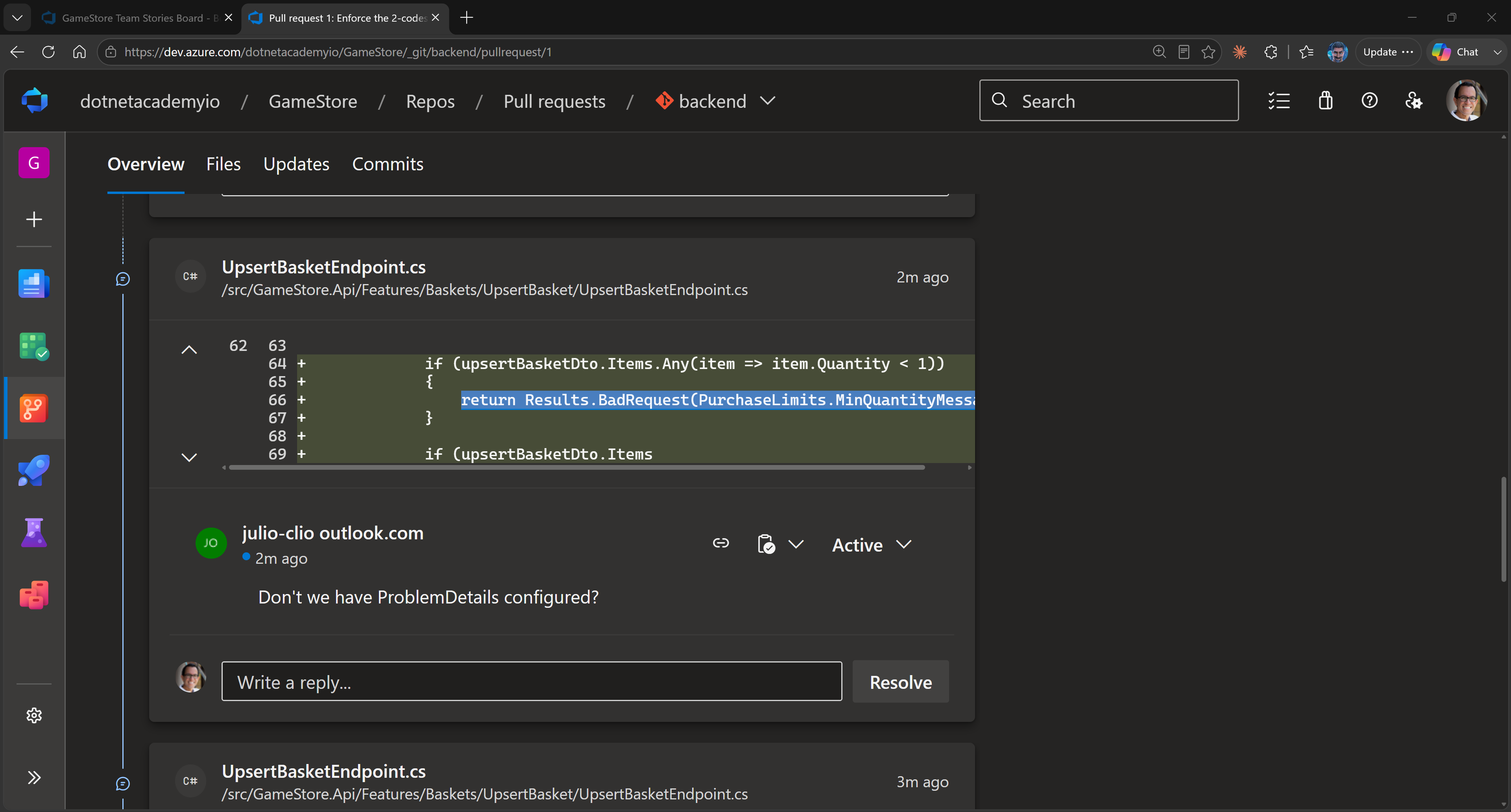
Then instead of me having to figure out what the comments were about, and then write a response for each one, I asked Claude to do it:
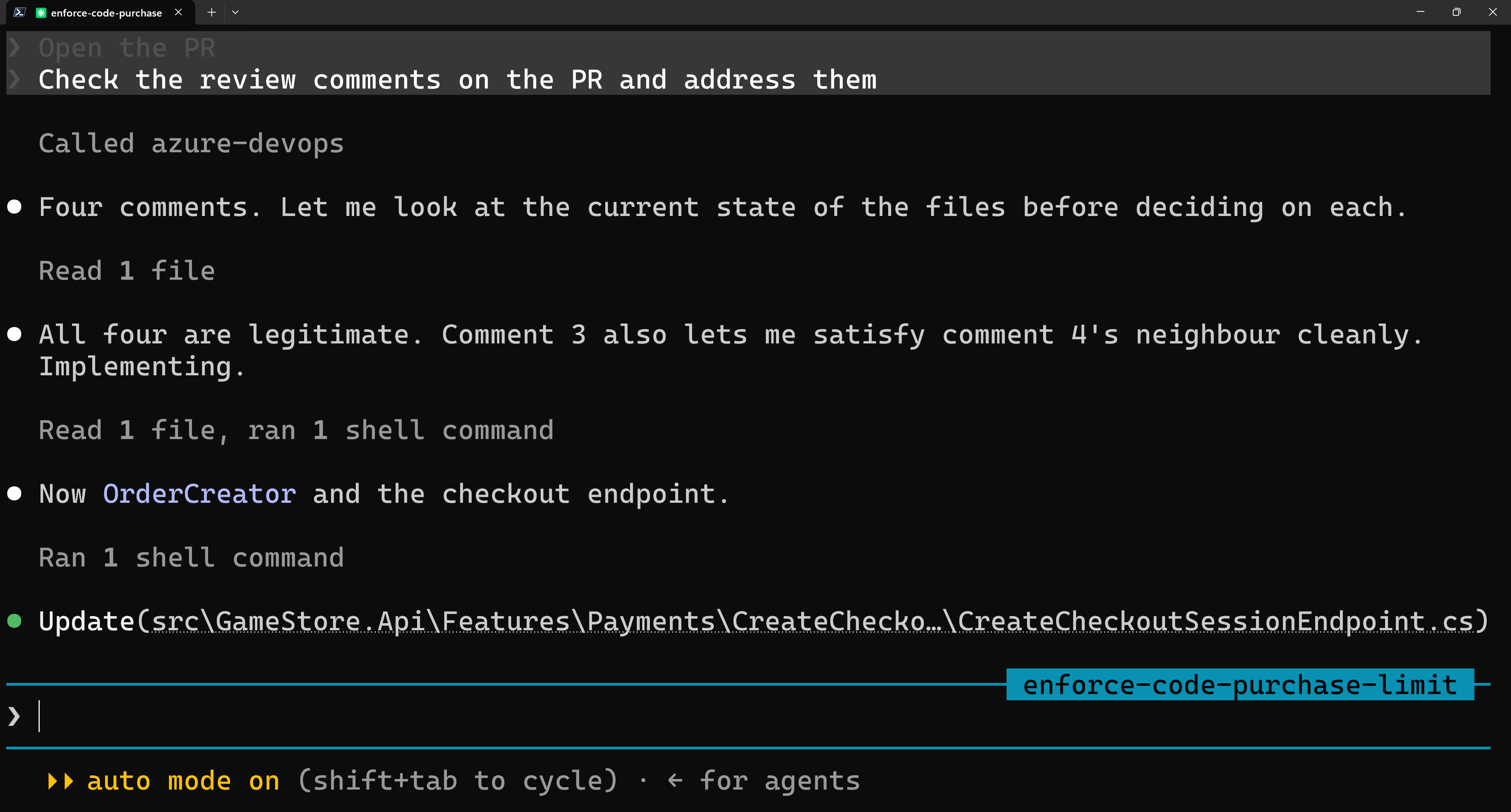
It read all comments over MCP, fixed the code, pushed one commit, and replied to every thread:
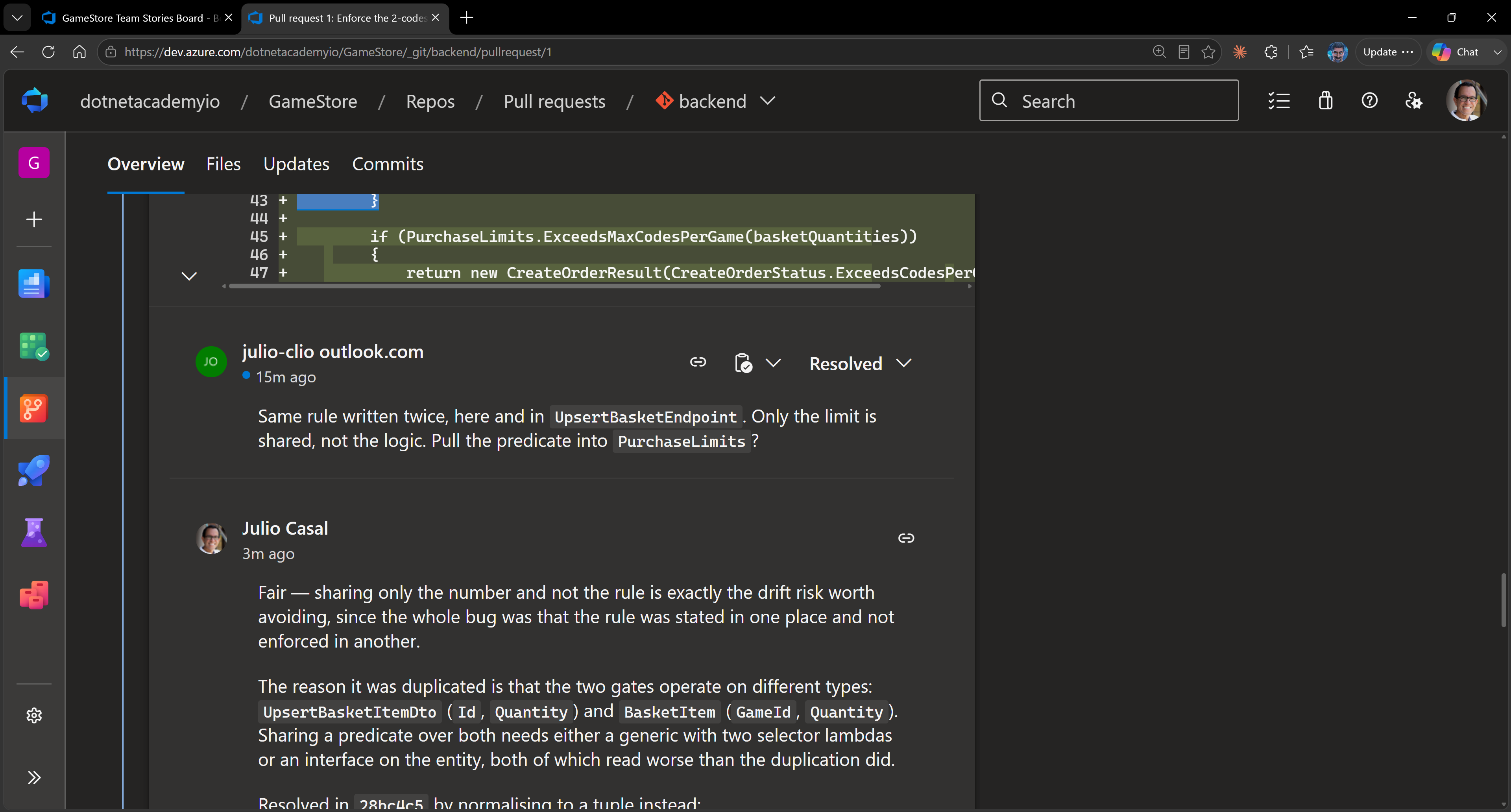
The replies show up under my name, because Claude is using my credentials. Worth asking Claude to show you the planned replies before it posts them, to ensure you agree with the tone and content.
Closing the loop
After Clio approved the pull request, I merged it, also requesting ADO to close the associated bug:
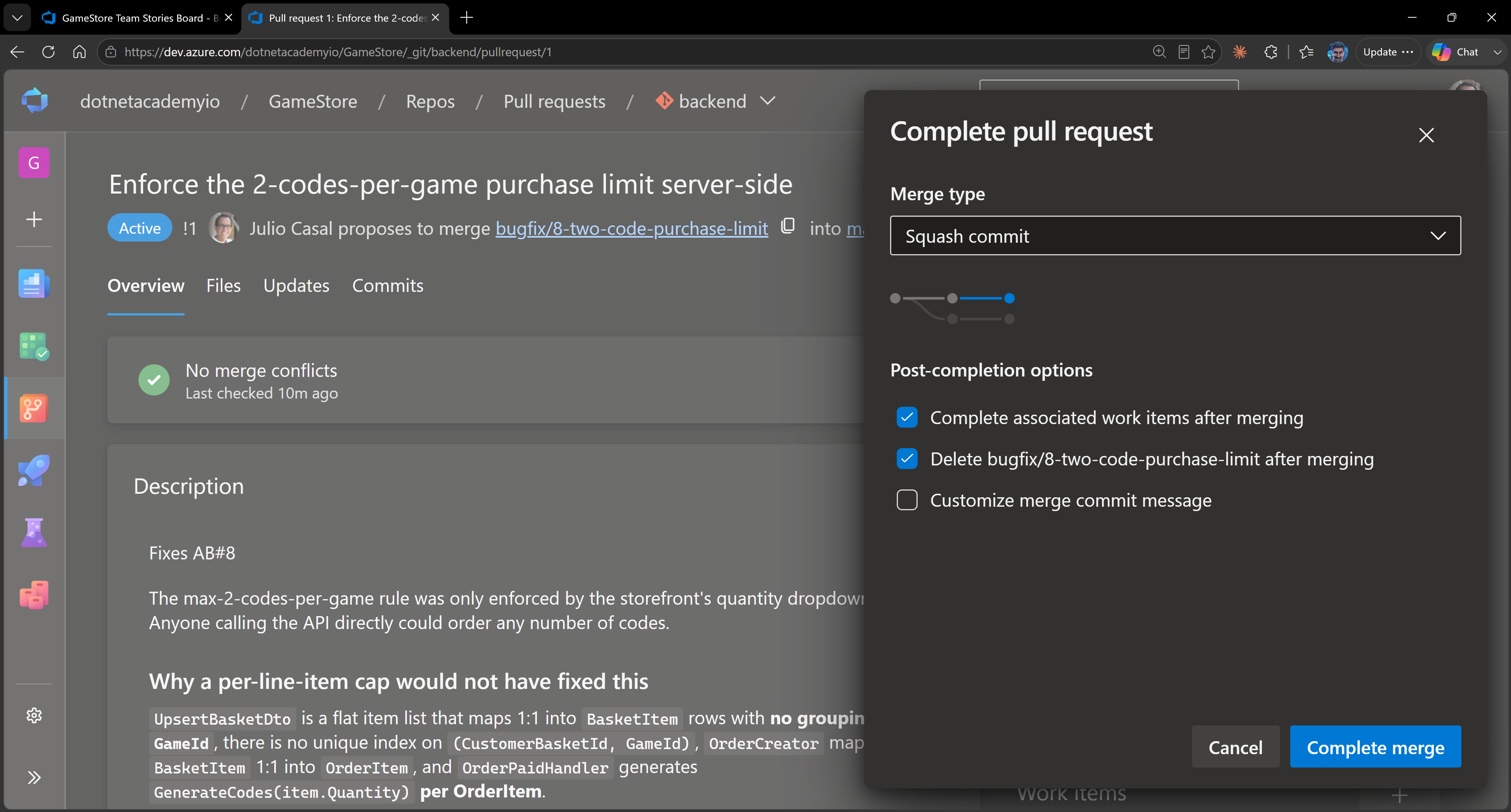
That part I still do myself, because it’s the point where the change lands into the main branch. But the bug closes automatically when the PR is merged, and the board updates itself:
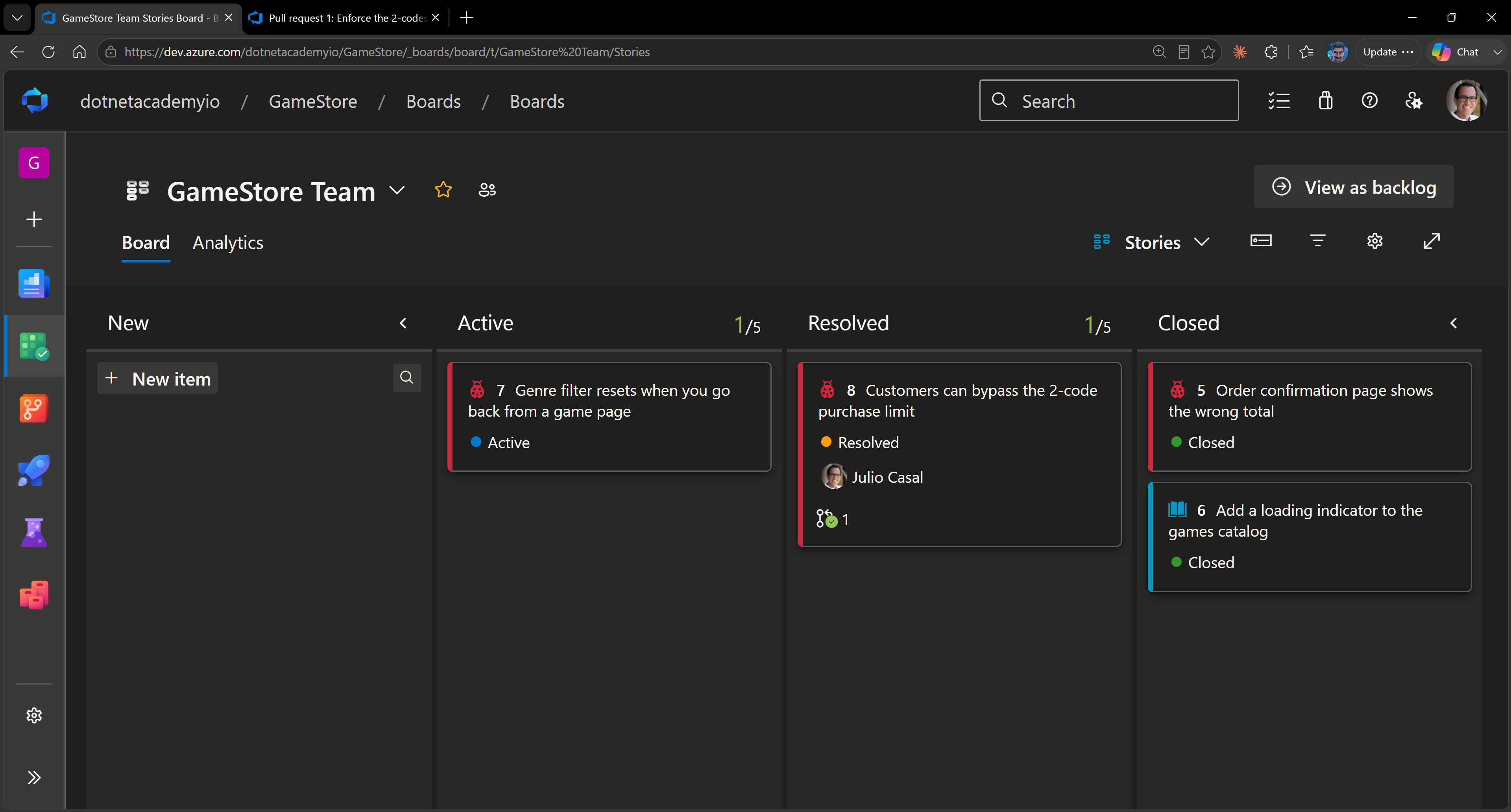
New, to Active, to Resolved. I never opened the board to move it.
If you’re on GitHub
The same loop works, and you don’t need an MCP server for it. Claude Code uses the GitHub CLI to read issues, open pull requests, and inspect review comments. As long as gh is installed and signed in, ask it to work on issue 8 and it will run gh issue view 8 on its own.
Wrapping up
This is where your coding agent pays for itself: reading the ticket, and writing the pull request.
That is the part where most devs are still doing a lot of copy-paste by hand, and where the devs themselves are the bottleneck on context.
The middle of the job is still yours: the planning, the debugging, and the decisions. But the agent is now handling the two places where context was getting lost.
And that’s it for today.
See you next Saturday.
Whenever you’re ready, here’s how I can help:
The .NET Developer Bootcamp: A complete path from ASP.NET Core fundamentals to building, containerizing, and deploying production-ready, cloud-native apps on Azure.